
Windows logs the exact second every app used your camera, mic, or location. You can find that hidden record and read it yourself.
Telling you about apps using your camera, microphone, or location in the background isn’t exactly a breakthrough discovery. Windows itself doesn’t try to hide it, as it shows an indicator in the taskbar while something is actively using one of them. But, even if everything is happening in plain sight, that still doesn’t mean you get the full picture.
Unless you constantly pay attention to the taskbar indicator, it’s easy to miss when something is using certain hardware inside your PC. You can get more info by going to Settings > Privacy & Security > App permissions. This lists all the apps that recently used different components, like location, camera, microphone, etc. But even this list is short, unlabeled with exact times in most views, and easy to overlook.
If you really want to see what’s going on, Windows actually keeps a far more detailed record in the registry. From there, you can see exactly which app used your camera or microphone, the second it started, the second it stopped, and how long it ran for, none of which ever makes it to Settings.
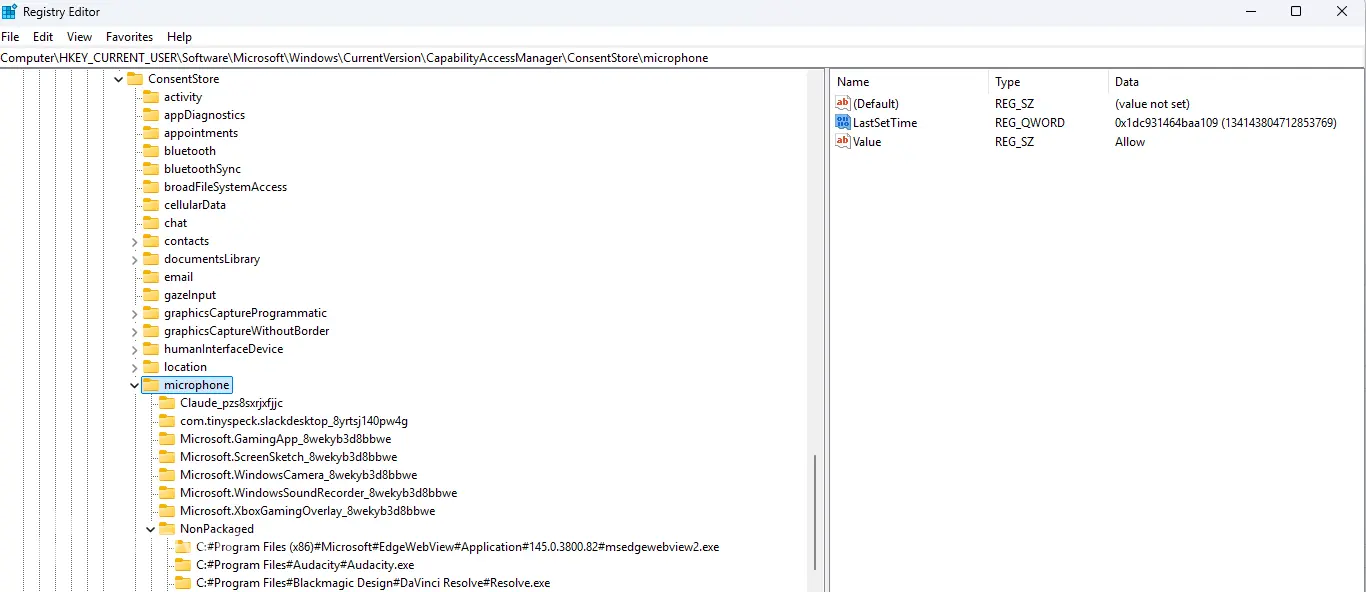
The record lives under a key called ConsentStore. Press Win+R and paste this in:
cmd /c reg add "HKCU\Software\Microsoft\Windows\CurrentVersion\Applets\Regedit" /v LastKey /d "Computer\HKEY_CURRENT_USER\Software\Microsoft\Windows\CurrentVersion\CapabilityAccessManager\ConsentStore" /f & regeditClose regedit first if it’s already open, otherwise it overwrites this on exit instead of using it. Run the command and regedit opens directly at ConsentStore.
Inside, each folder is a capability. Webcam, microphone, location, and a handful of others, depending on what your machine has used. Open one and you’ll find a folder per app, either a package name for a Store app or a raw executable path grouped under a folder called NonPackaged.
Click into one of those app folders and you’ll see values like LastUsedTimeStart, LastUsedTimeStop, LastSetTime, and Value. That last one just shows Allow or Deny, the same thing the Settings toggle controls. The three timestamps are the part Settings never shows you at all.
Reading the ConsentStore values
Now, one caveat of using the registry editor for this is that it doesn’t show you the exact timestamps in a way you would immediately understand. Open any of those timestamp values and the data column shows something like 0x1dd217e84c2c69a1. That’s not a date, at least not one you can read. It’s a FILETIME value, a count of 100-nanosecond intervals since January 1, 1601.
If you do the conversion, you’ll find the exact timestamp listed in actual minutes and seconds. However, doing this for every app on your machine simply doesn’t cut it.
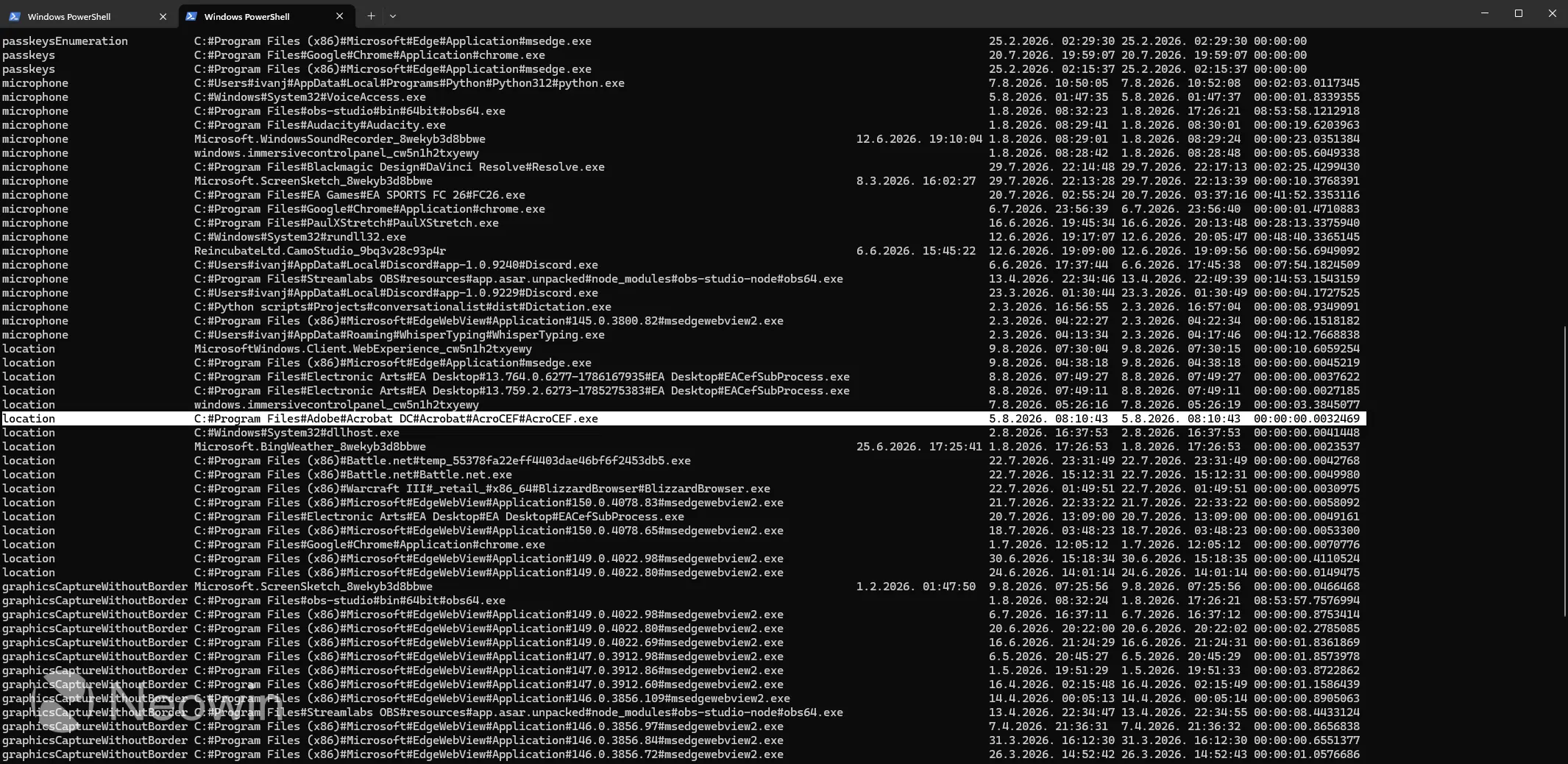
Luckily, you can run a PowerShell script that walks every capability folder under ConsentStore, converts every timestamp it finds, and prints a table showing which app, which permission, when it was granted, when it was last used, and for how long.
Here’s the script:
$root = "HKCU:\Software\Microsoft\Windows\CurrentVersion\CapabilityAccessManager\ConsentStore"

$results = Get-ChildItem $root | ForEach-Object {
    $medium = $_.PSChildName

    Get-ChildItem $_.PSPath -Recurse | ForEach-Object {
        $props = Get-ItemProperty $_.PSPath -ErrorAction SilentlyContinue

        if ($props.LastUsedTimeStart -and $props.LastUsedTimeStop -and $props.LastUsedTimeStart -ne 0) {
            $start   = [datetime]::FromFileTimeUtc($props.LastUsedTimeStart).ToLocalTime()
            $stop    = [datetime]::FromFileTimeUtc($props.LastUsedTimeStop).ToLocalTime()
            $granted = if ($props.LastSetTime) {
                [datetime]::FromFileTimeUtc($props.LastSetTime).ToLocalTime()
            } else {
                $null
            }

            [PSCustomObject]@{
                Medium              = $medium
                App                 = $_.PSChildName
                PermissionGrantedOn = $granted
                LastUsedStart       = $start
                LastUsedStop        = $stop
                Duration            = $stop - $start
            }
        }
    }
}

$results | Sort-Object Medium, LastUsedStart -Descending |
    Format-Table Medium, App, PermissionGrantedOn, LastUsedStart, LastUsedStop, Duration -AutoSize
Paste this script into PowerShell and it prints every app grouped by medium, sorted with the most recent access first. Duration is the exact length of that last session, down to the second.
Two things worth knowing before you run it. Windows only keeps the most recent access per app, not a running history, so if you’re looking for a pattern over time this won’t give you one. And PermissionGrantedOn is when the app was allowed to use that capability, not the first time it actually did.
Also, this only covers your own account. For permissions granted at the system level, swap the path for HKLM:\SOFTWARE\Microsoft\Windows\CurrentVersion\CapabilityAccessManager\ConsentStore and run PowerShell as administrator.
Now, this is where the real deal is. The output will show you every single app or service that used your camera, location, webcam, etc. And if you inspect it closely, you might actually be surprised by what you found. For example, I found that EA Sports FC 26 was using my microphone for 40 minutes, and I don’t remember ever allowing it to or using my microphone during the gameplay. Like subpar gameplay wasn’t bad enough…
It’s absolutely worth to take your time and go through the list. If you find something suspicious, you can either delete that app/program or revoke its permissions. You can never be sure enough, especially with how much of your data Windows is already sending to external servers.
If you tried this, feel free to let us know in the comments if you found an app you didn’t expect to see here.