
Method 1: Use the Play Store (on Android) or App Store (on iPhone)
One way to find hidden apps on a phone is to check the Play Store (on Android) or App Store (on iPhone). Even if an app gets hidden from the app drawer/home screen, it will always show up on these platforms, unless the app is sideloaded. To view the installed apps list on your Android phone, follow these steps:
1. In the Play Store, tap your profile picture in the top-right corner.
2. Select Manage apps & device.
3. Go to the Manage tab.
4. Make sure “This device” is set at the top.
Here’s what you need to do on your iPhone instead:
In the App Store, press your profile picture in the upper right of the screen.
Tap on Apps & Purchase History.
Choose Your Apps.
From here, you can now scroll through the list of apps and compare it with what you see in the app drawer to see what apps were hidden. But keep in mind that on the App Store, only the apps with the Open button are currently installed on the phone. Those with just the download button have already been uninstalled.
Another thing to watch out for is disguised apps. For instance, there’s a calculator app that doubles as a vault for hiding apps on the device. Some app hiders can also look like a phone dialer or a clock. That said, if you spot an unfamiliar app icon on the app list, it’s best to open its details page to see what it really is.
Once you’ve found the hidden apps, you can freely launch them from the Play Store on Android. On iPhones, though, you’ll still need the Face ID or passcode before you can open the hidden app.
Method 2: Check your settings.
Other than the official app stores, an easy way to find a phone’s hidden apps is to browse the app list in Settings. It will show you every app currently installed on the device, even those that were purposely removed from view.
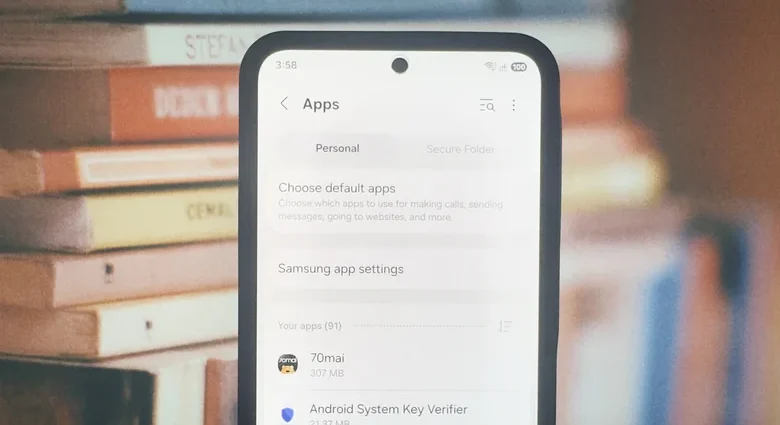
Accessing the app list can vary depending on your Android manufacturer, though. On Google Pixel and Motorola devices, you first have to launch Settings, open Apps, and press See all [number] apps at the top of the page. On Samsung, simply go to Apps in Settings, then tap the filter icon and select “Installed by you.” This will display only the apps you installed. If you can’t find these options on your Android phone, try typing “apps,” “all apps,” or “manage apps” in the search bar.
Once you have your installed app list, start cross-checking it against the app drawer. Unfortunately, this is the only way to find hidden apps on the phone since there’s no label to immediately tell you whether an app has been hidden from the home screen or app drawer. But on the bright side, when you find the app you’re interested in, you can readily open it right from the Settings.
Meanwhile on iOS, your hidden apps won’t immediately be visible on the Apps page. Instead, they’re tucked away inside a Hidden Apps menu. These apps can also be found in the Hidden Apps folder at the bottom of the App Library. However, you’ll still need Face ID or a passcode to access these apps.