
Delay startup apps in Windows 11 with Task Scheduler so programs launch gradually instead of all at once after sign-in.
Depending on your habits and preferences, there’s a good chance you’ve got at least some apps set up to start automatically when you boot up your Windows PC. However, having too many apps set to launch with Windows can turn into a bit of a mess, especially if you’re using a lower-end PC.
That can make the first minute or two after signing in feel unnecessarily sluggish. Even if it probably won’t lose you too much time, it’s still annoying to watch multiple apps slowly unfreeze in real time. Ideally, you want to boot up your PC and start working on whatever it is that you’re working on.
So, you’ve got two options. The obvious option is to decrease the number of apps that start with Windows. But that doesn’t have to be the only possible solution. Another idea could be to pace the automatic startup of apps. For example, you can set the most important apps to start immediately, and have those that you don’t need right away start a few minutes later. That way, you spread out the demand on system resources, which can result in a potentially smoother experience.
How to make Windows 11 launch startup apps later
Now, you can’t delay startup apps in Windows by default, but you can do so with Task Scheduler. Here’s what you need to do:
- Go to Settings > Apps > Startup and disable the app you want to delay. This is important because otherwise Windows may launch the app normally, and then Task Scheduler will launch it again later.
- Press Win + R, type taskschd.msc, and press Enter to open Task Scheduler.
- In the right-hand pane, click Create Task. Give the task a name that makes it obvious which app it belongs to, especially if you plan to do this for multiple startup programs.
- Open the Triggers tab and click New. Set Begin the task to At log on.
- Enable Delay task for and choose how long you want Windows to wait before launching the app. For something non-essential, one or two minutes is usually enough to let Windows finish loading the desktop and background services first.
- Open the Actions tab and click New.
- Set Action to Start a program, then browse to the app’s executable file and select it. If you’re not sure where the executable is located, you can usually find it from the app’s shortcut properties or installation folder.
- Click OK to save the task.
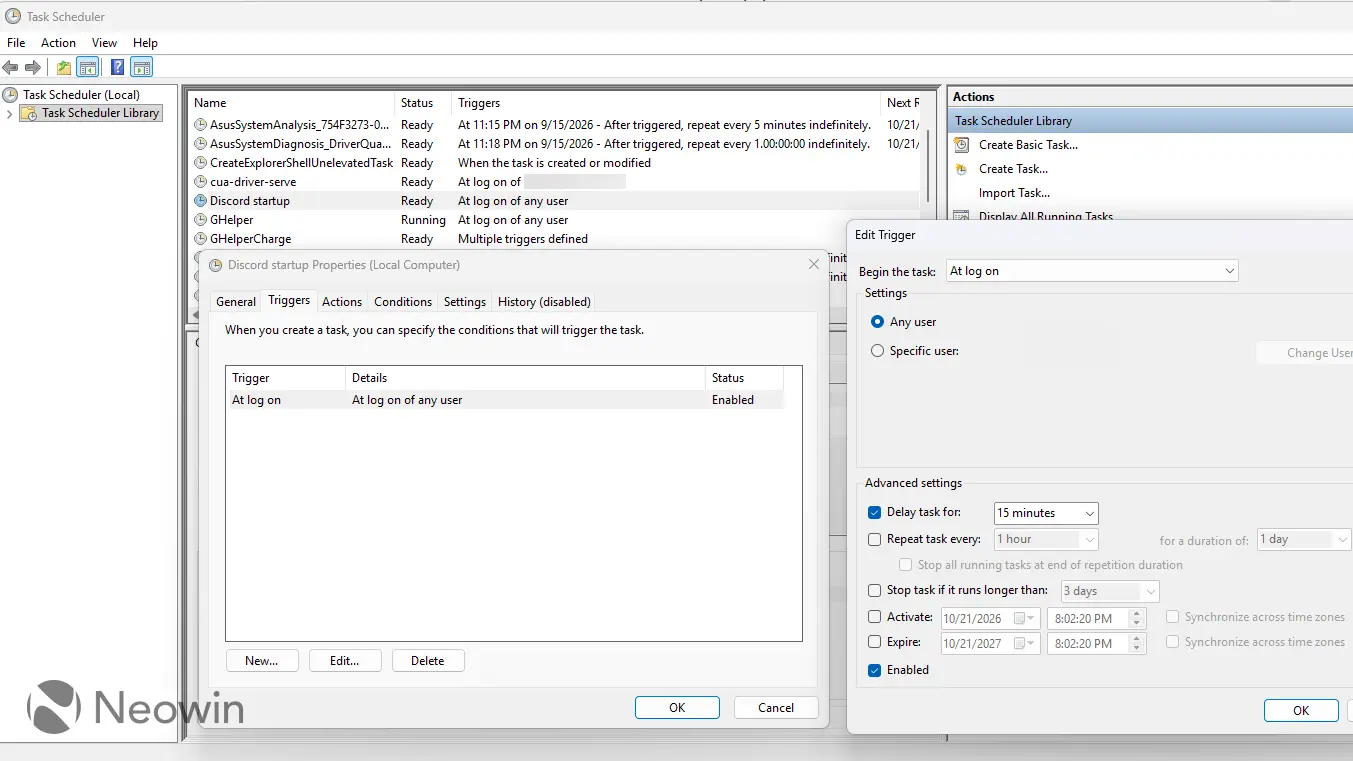
The next time you sign in, Windows will wait for the amount of time you selected before launching that app. Instead of having every startup program pile in at once, you can spread them out over the first few minutes after login.
You can repeat the same process for other startup apps and stagger them however you want. For example, you could have a chat app launch after 30 seconds, a game launcher after two minutes, and something you rarely use after 30 minutes. That way, the programs still start automatically without all competing for resources at the same time.
If you ever want to change the delay, open Task Scheduler, find the task you created, and edit its trigger. And if you want to go back to normal startup behavior, delete the task and re-enable the app under Settings > Apps > Startup.
And if you want even more control over your startup apps, here’s how to find hidden startup apps and services that open automatically when you boot up your PC.