
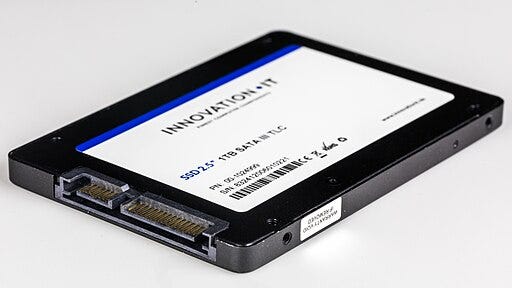
SSDs don’t live forever. Just like a hard drive, an SSD has a limited lifespan, denoted (most commonly) by the number of terabytes of data that can be written to it (TBW). Most SSDs have TBW ratings that will take you 5 to 6 years to reach, even with unrealistic amounts of data written every day. Still, you might be unknowingly reducing this figure by ignoring certain best practices on your desktop or laptop PC. The chances of your SSD failing within the warranty period are pretty slim, but you can still do your bit to ensure that never happens.
4
Skipping firmware updates
They’re not as useless as they seem
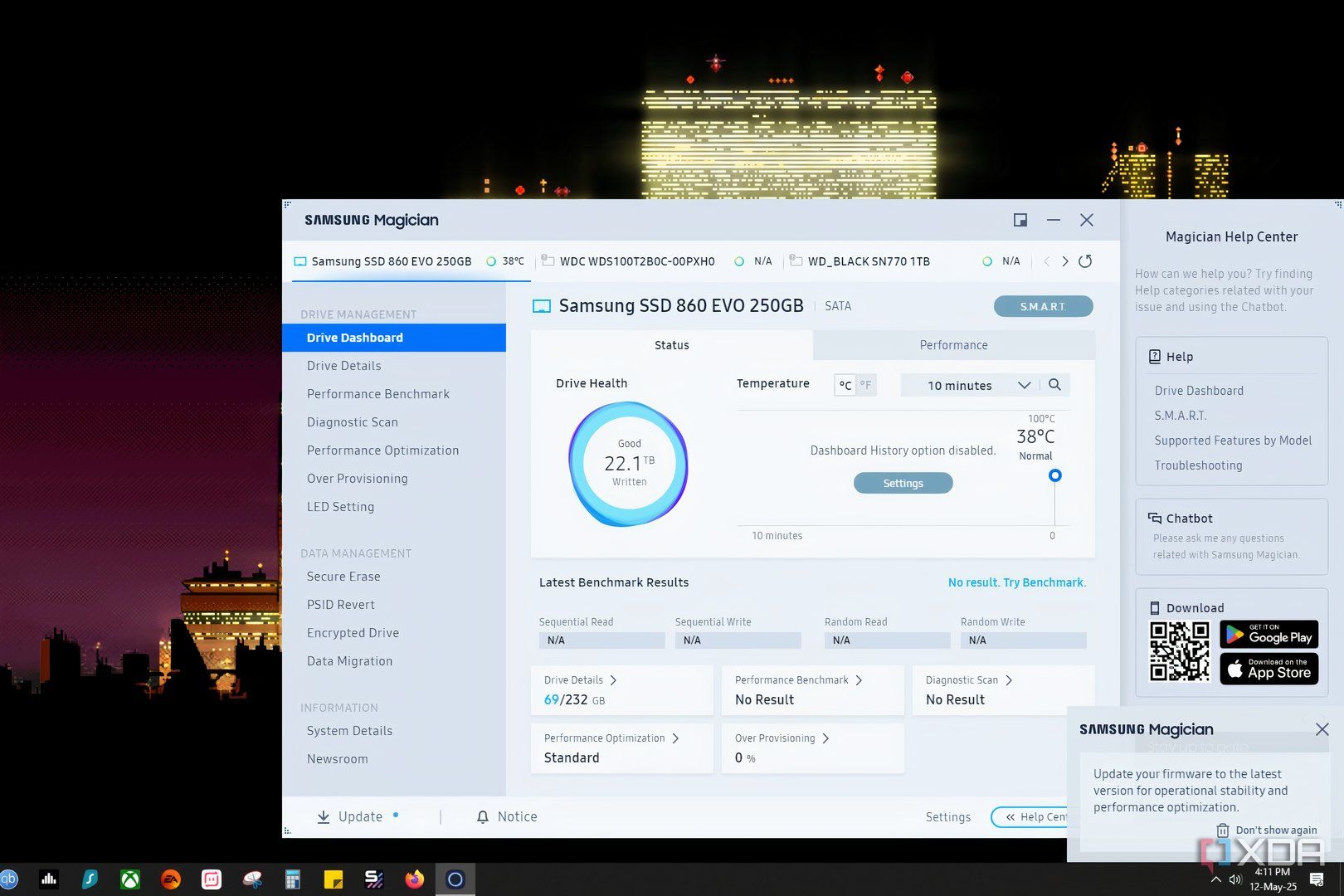
I know updating things like firmware and BIOS isn’t something everyone adheres to. In fact, I recently updated my PC’s BIOS after 4 years, and only because I wanted to solve peculiar power cycling issues (which the update still didn’t solve). Updating your SSD’s firmware is probably an even rarer phenomenon, but it might be hurting your SSD’s performance and lifespan.
Manufacturers release firmware updates to improve various SSD functions like TRIM and wear leveling, which are some of the best ways to extend your SSD’s lifespan. Skipping crucial firmware updates will leave your drive running less efficient maintenance processes, essentially preventing it from lasting as long as it could have. While it might not improve your SSD’s lifespan significantly, it doesn’t hurt to update the firmware.
3. Depriving your SSD of adequate cooling
Fix this ASAP
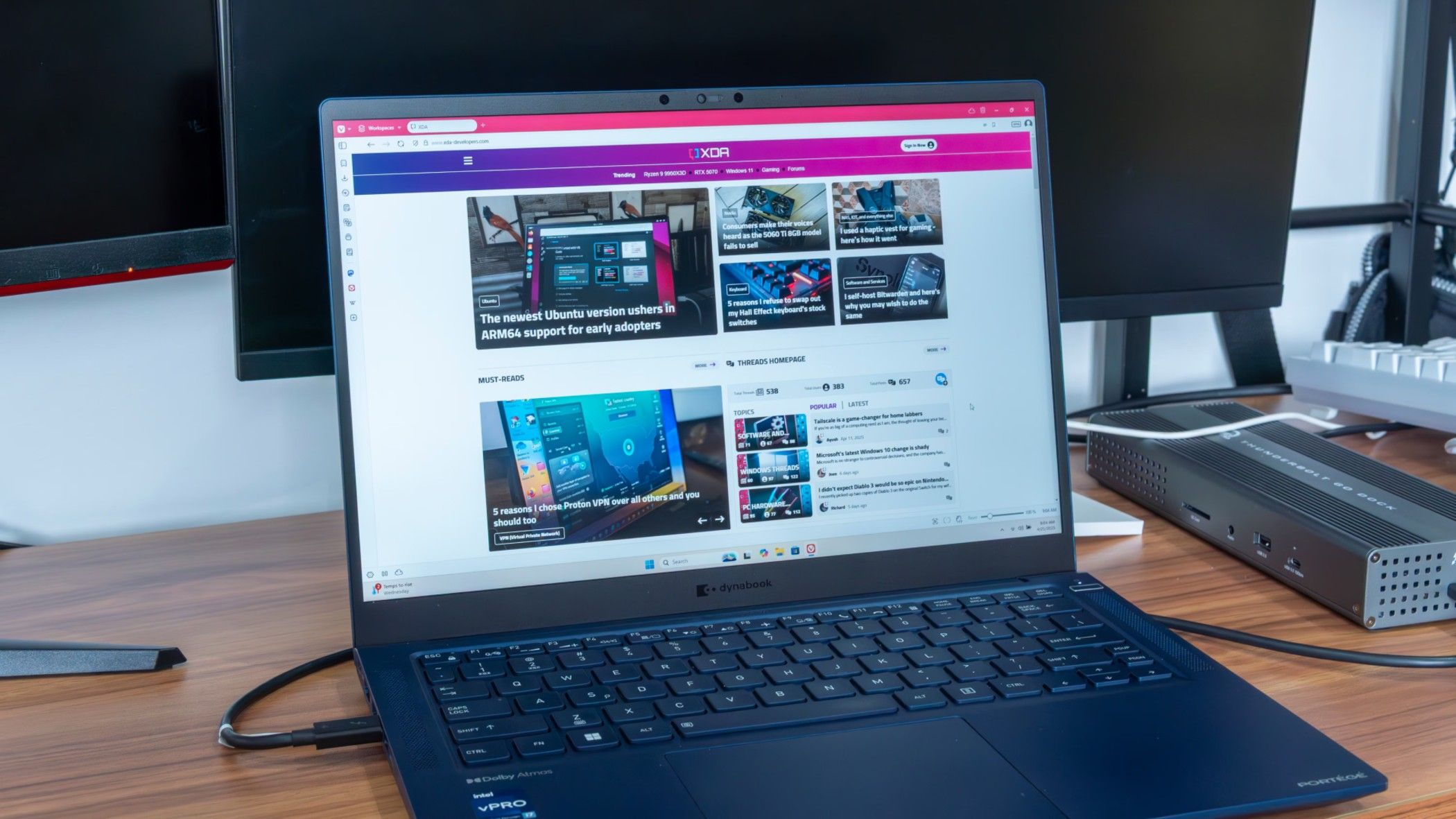
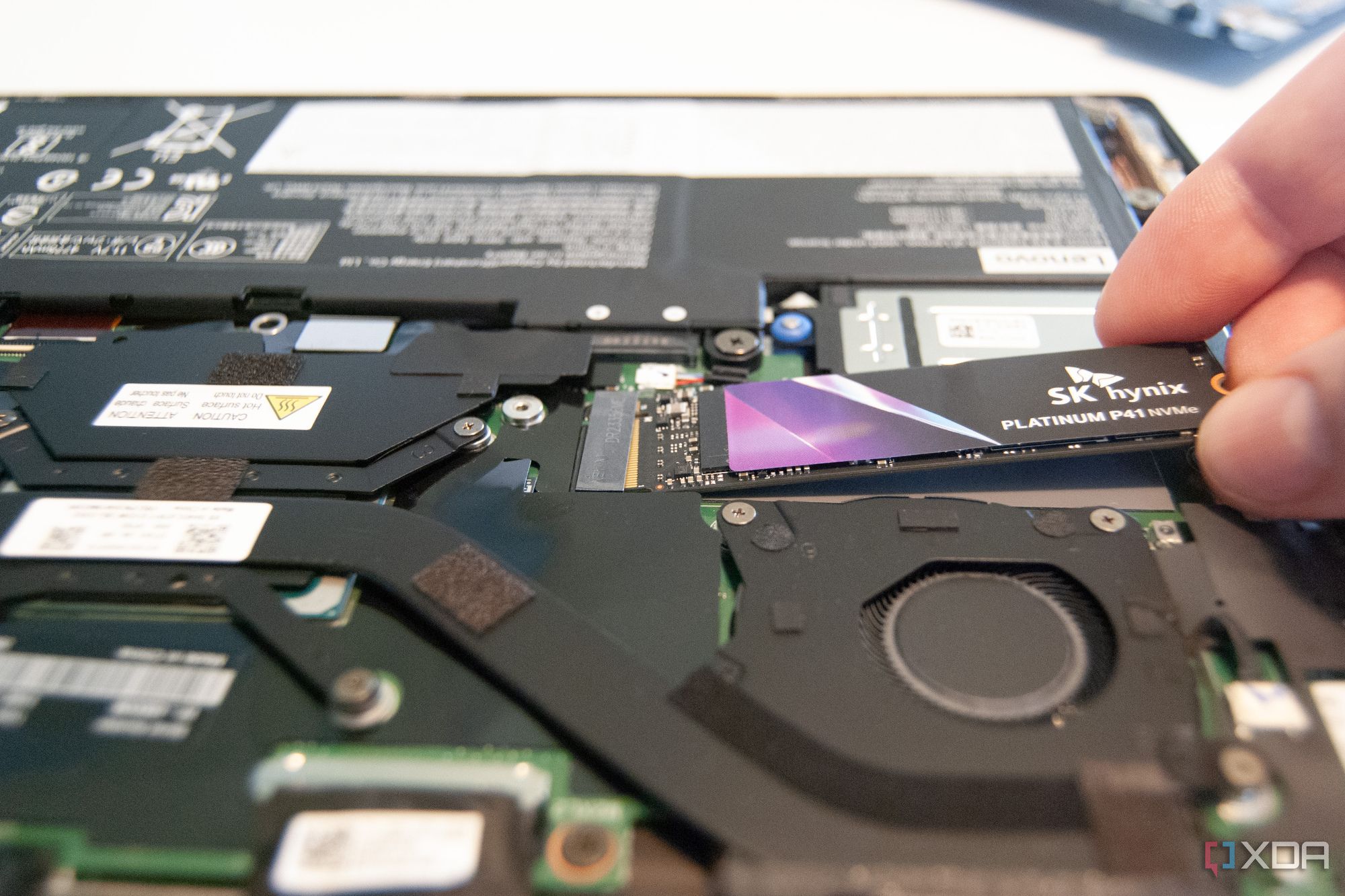
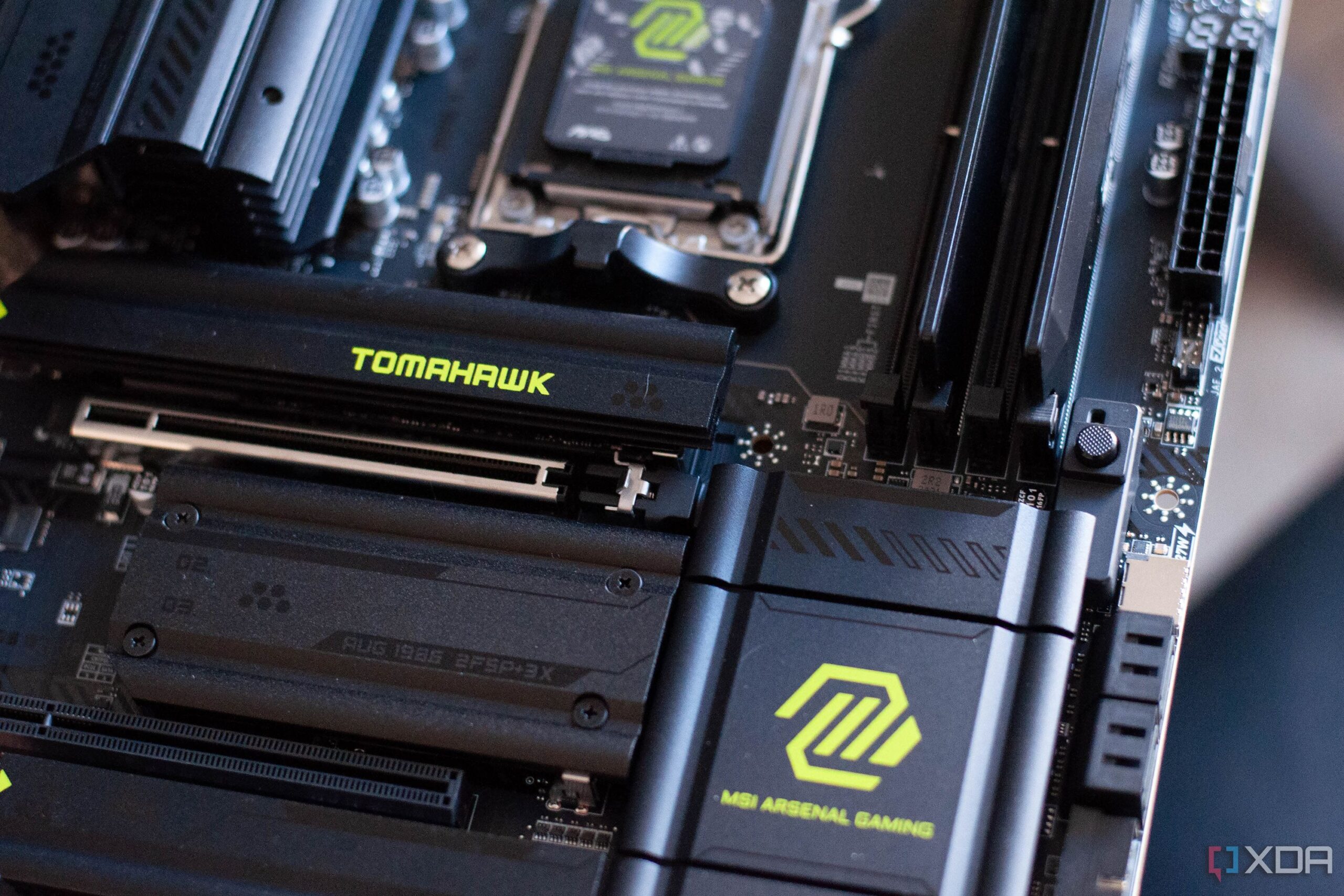
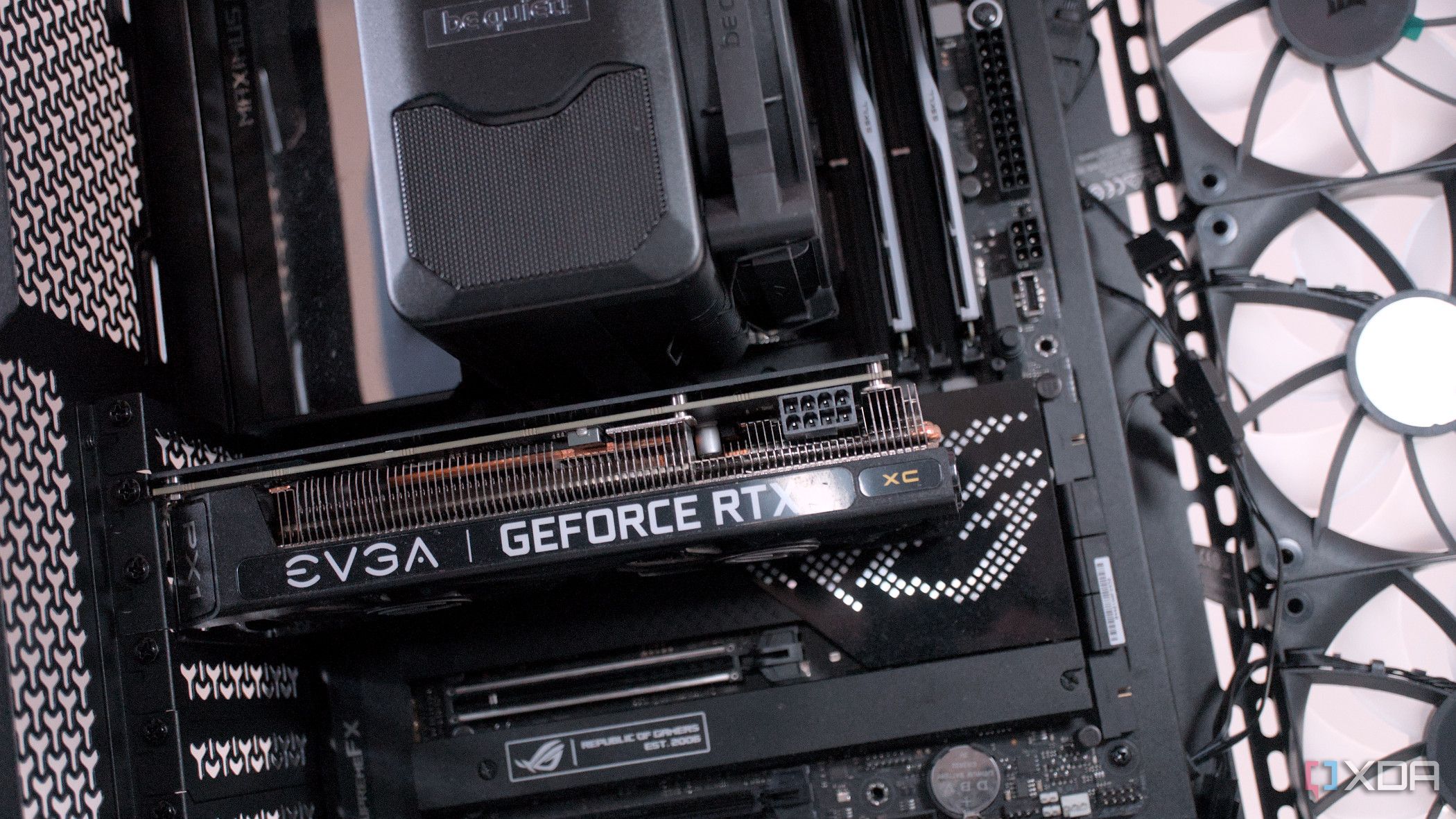
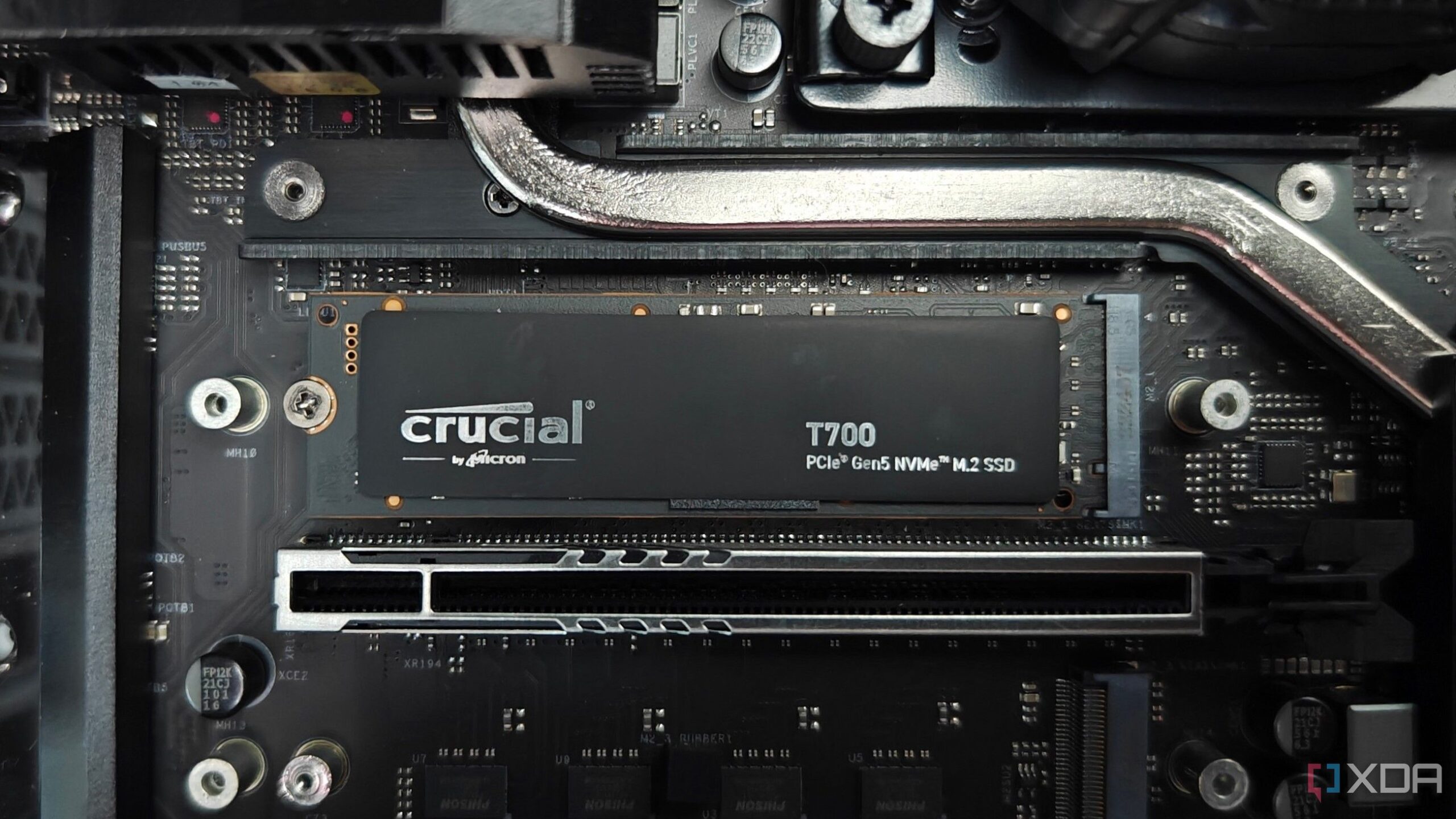
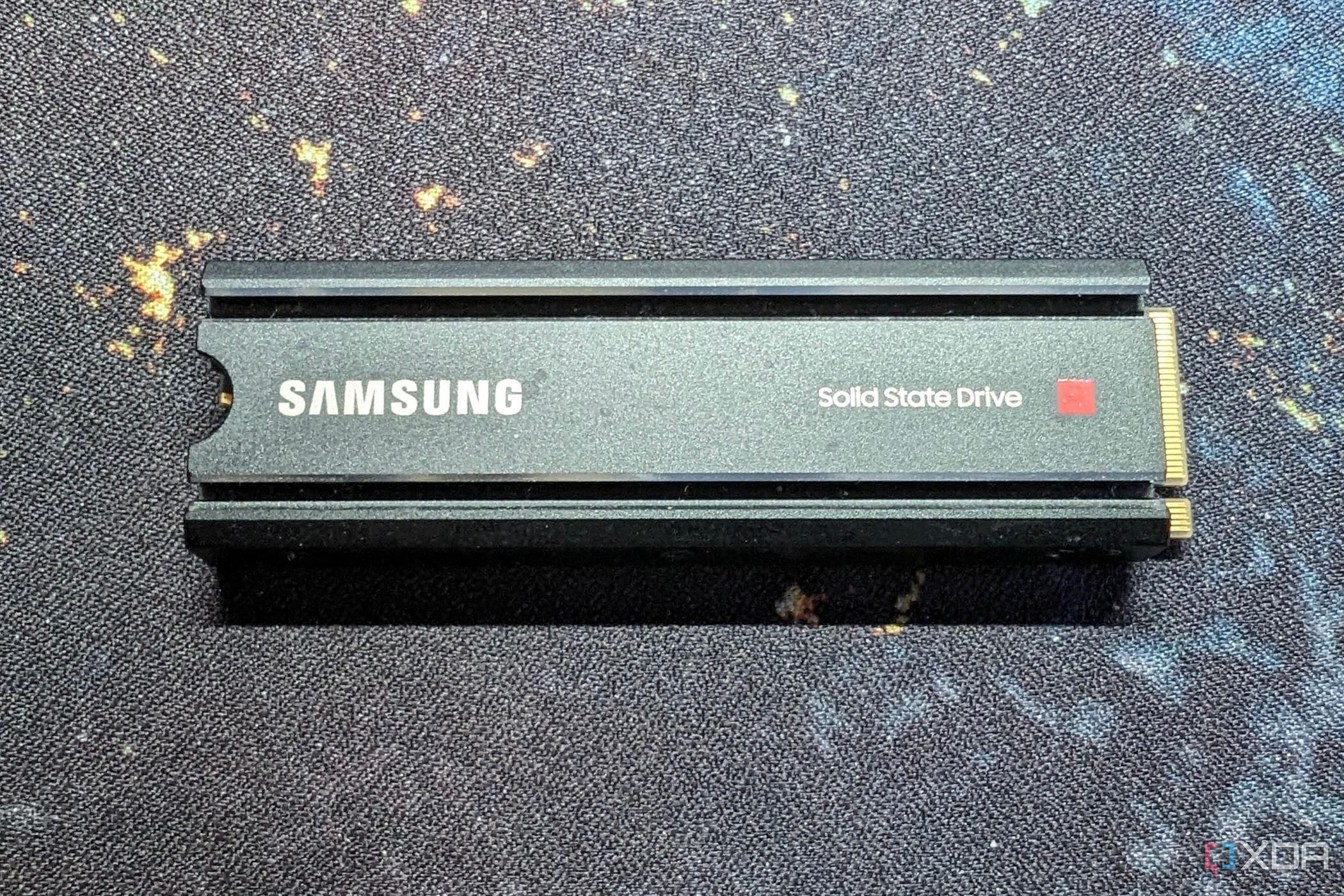
Heat is one of the biggest roadblocks to an SSD’s long life. Your SSD is made up of several components, like the NAND flash, controller, and DRAM cache. These components can’t work properly beyond a certain temperature range. For most SSDs, 70℃ is usually the hottest they should be running at. An SSD constantly running at higher temperatures is at a greater risk of failure. SSD heatsinks use thermal pads to transfer excess heat into the PC, which can then be exhausted.
If your PC doesn’t have enough fresh air coming in or hot air going out, your SSD (like any other component) can overheat, and even thermal throttle. This problem is usually severe only for Gen5 SSDs, but even if you’re running a high-end Gen4 drive, you should ensure your PC’s airflow is optimized. If your SSD doesn’t have a heatsink installed, find the one that came with the drive or your motherboard, and install it. Alternatively, you can buy a $5 heatsink from Amazon.
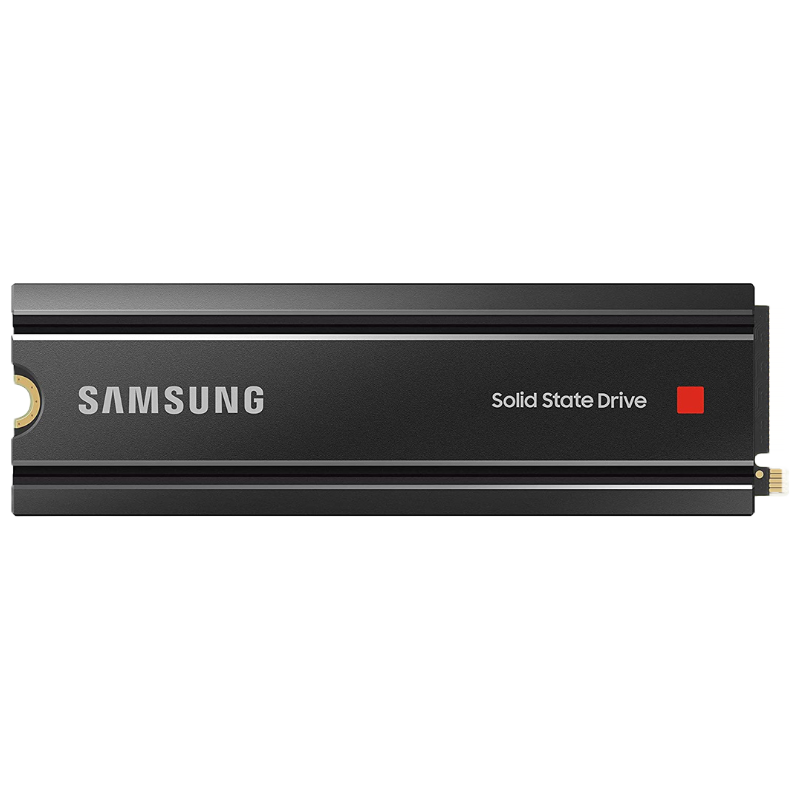
Samsung 980 Pro with Heatsink
$120$165Save $45
The Samsung 980 Pro is essentially a slower version of the 990 Pro and is designed for use with consoles like PlayStation 5, featuring read speeds of up to 7000 MB/s and write speeds of up to 5000 GB/s. The SSD is backward compatible with PCIe 3.0 motherboards, and the integrated heat sink disperses heat and keeps the 980 Pro running optimally.
$91 at Amazon$108 at Best Buy$120 at Samsung
2. Not cleaning your PC regularly
Letting the dust settle
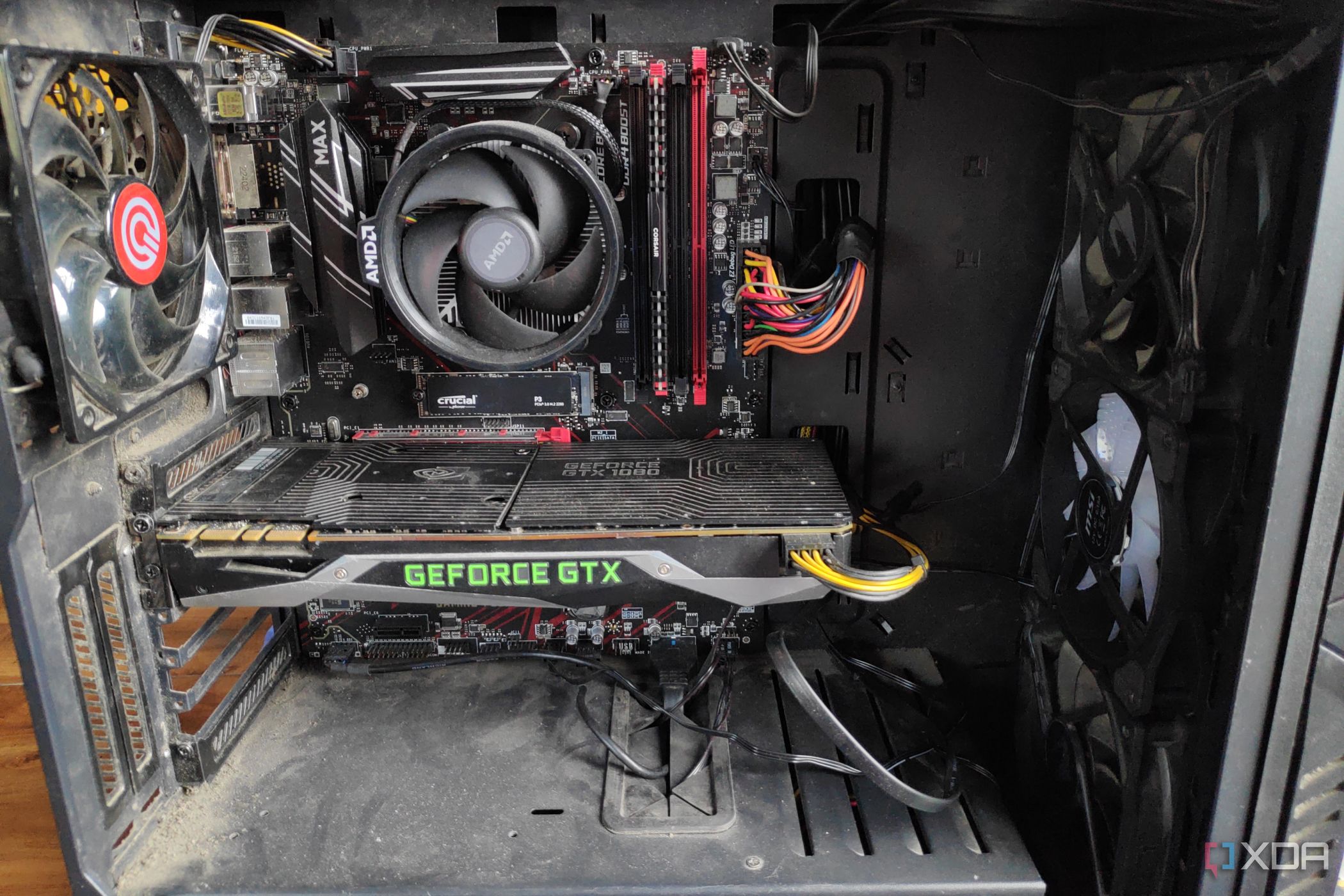
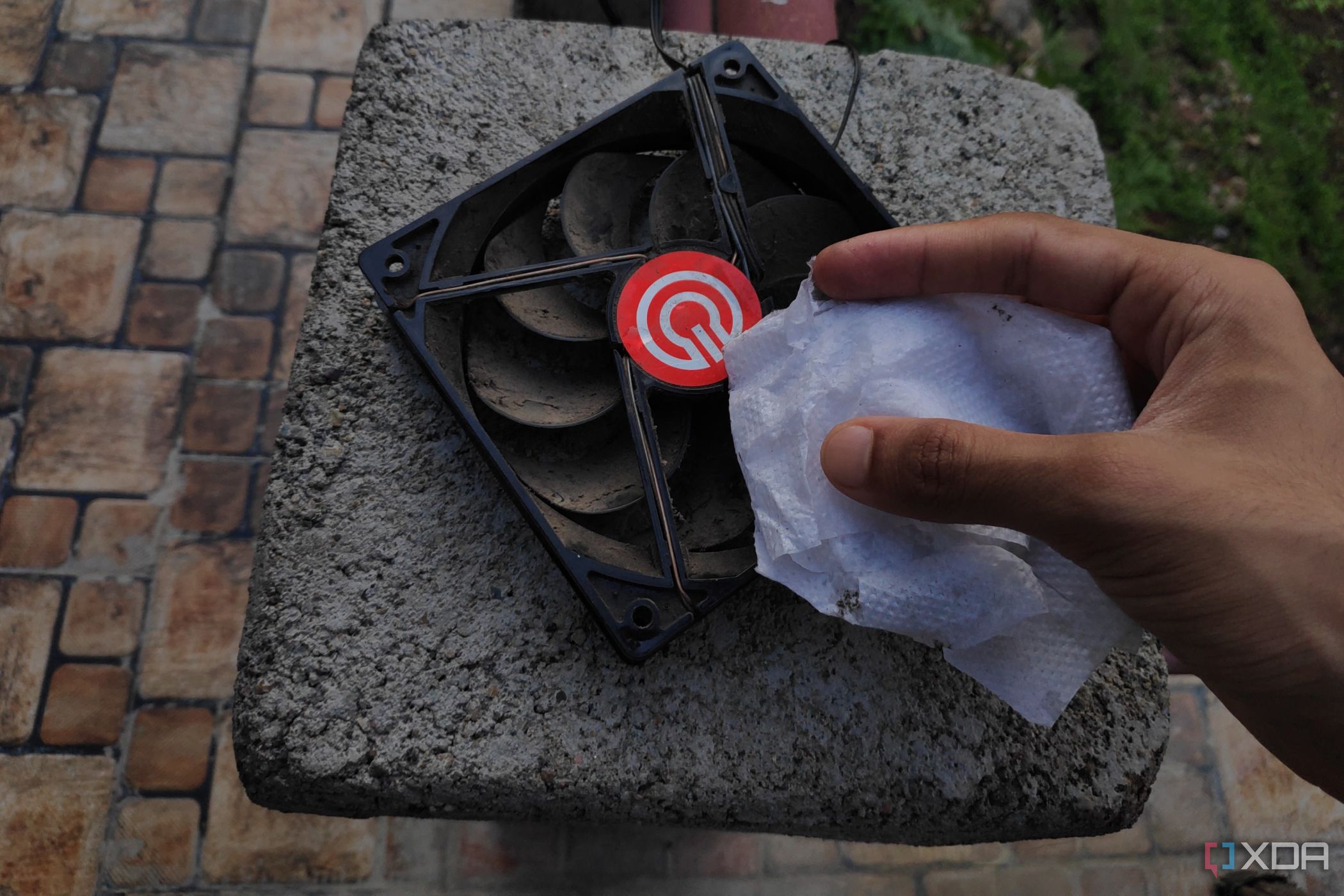
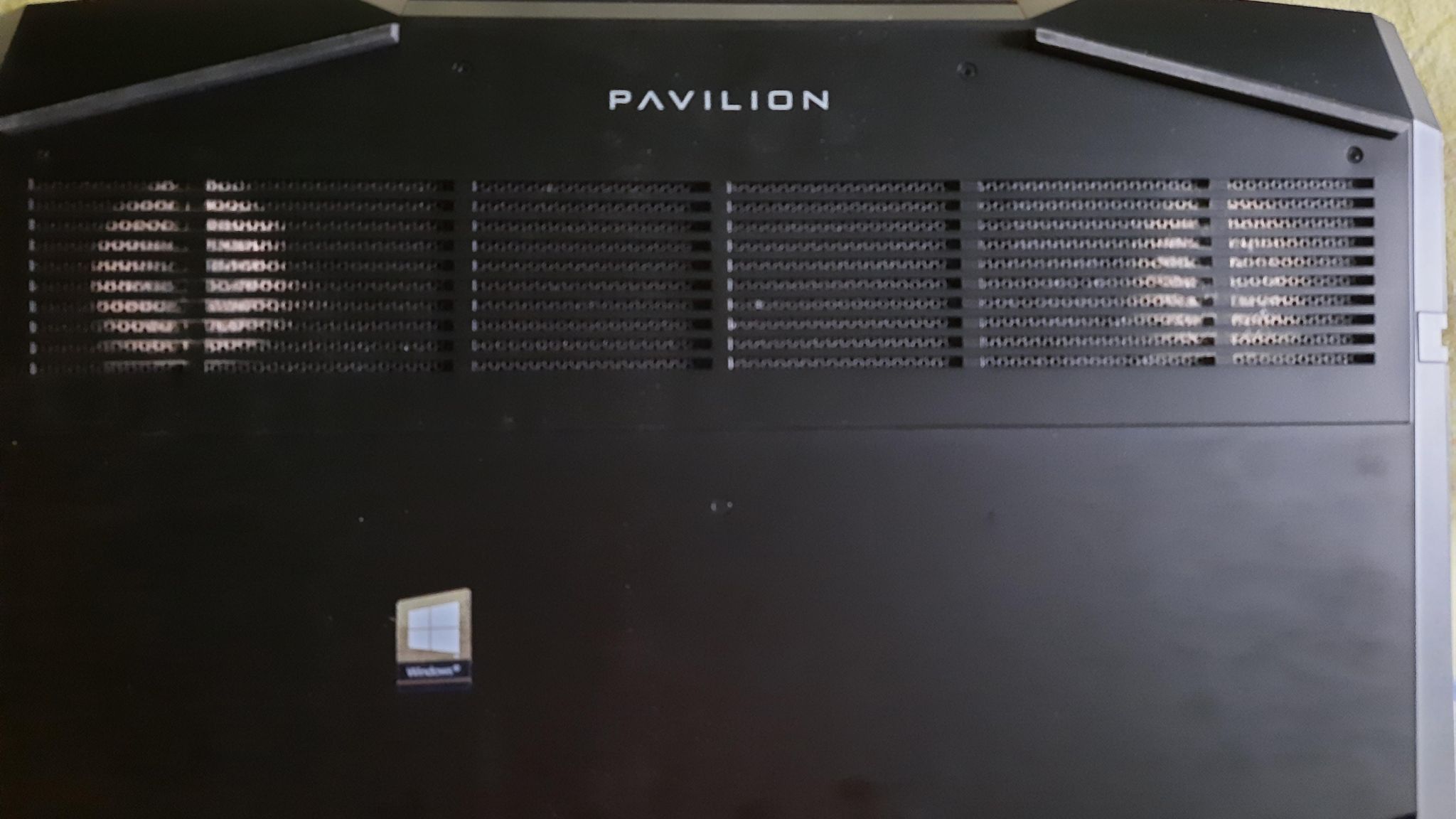
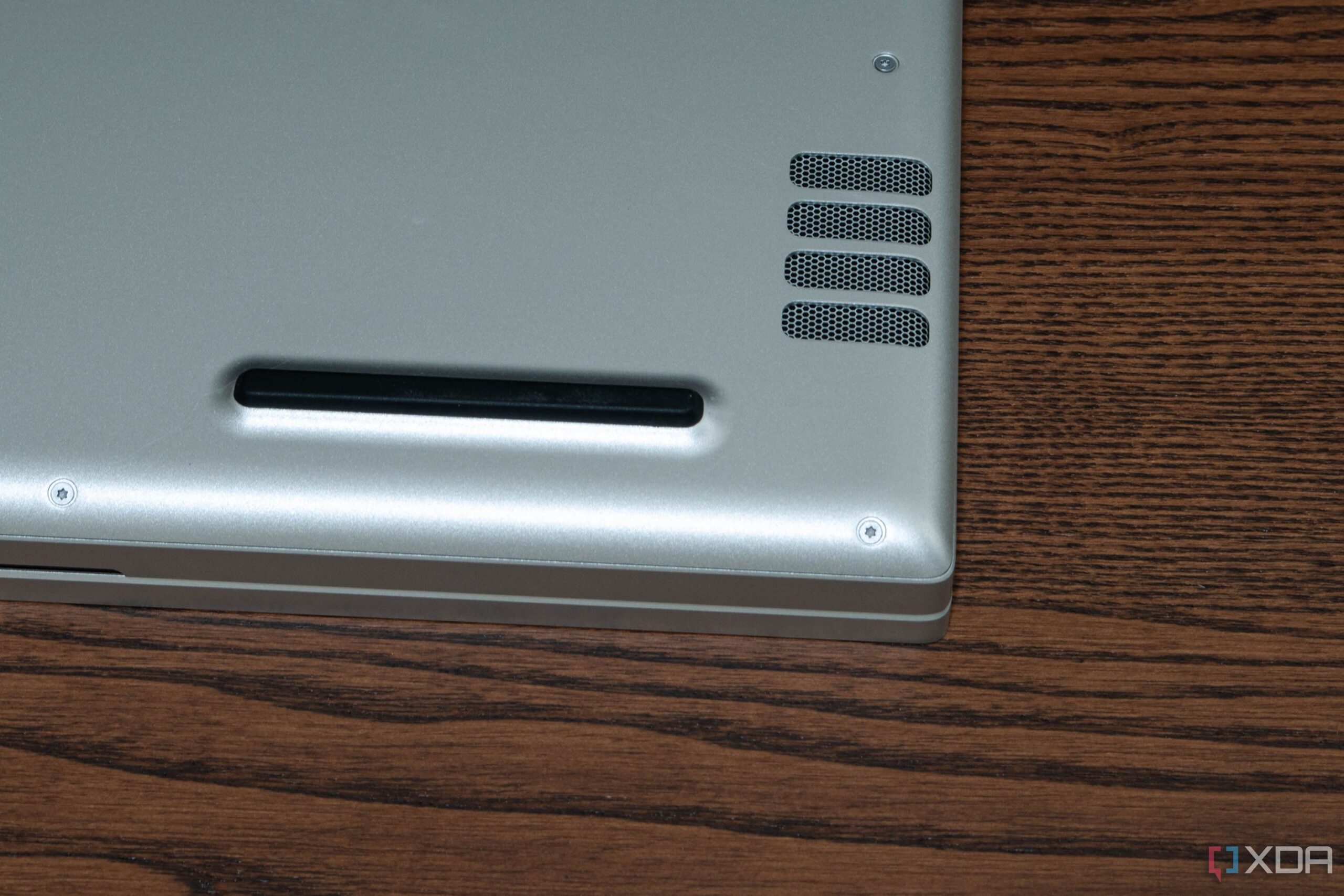
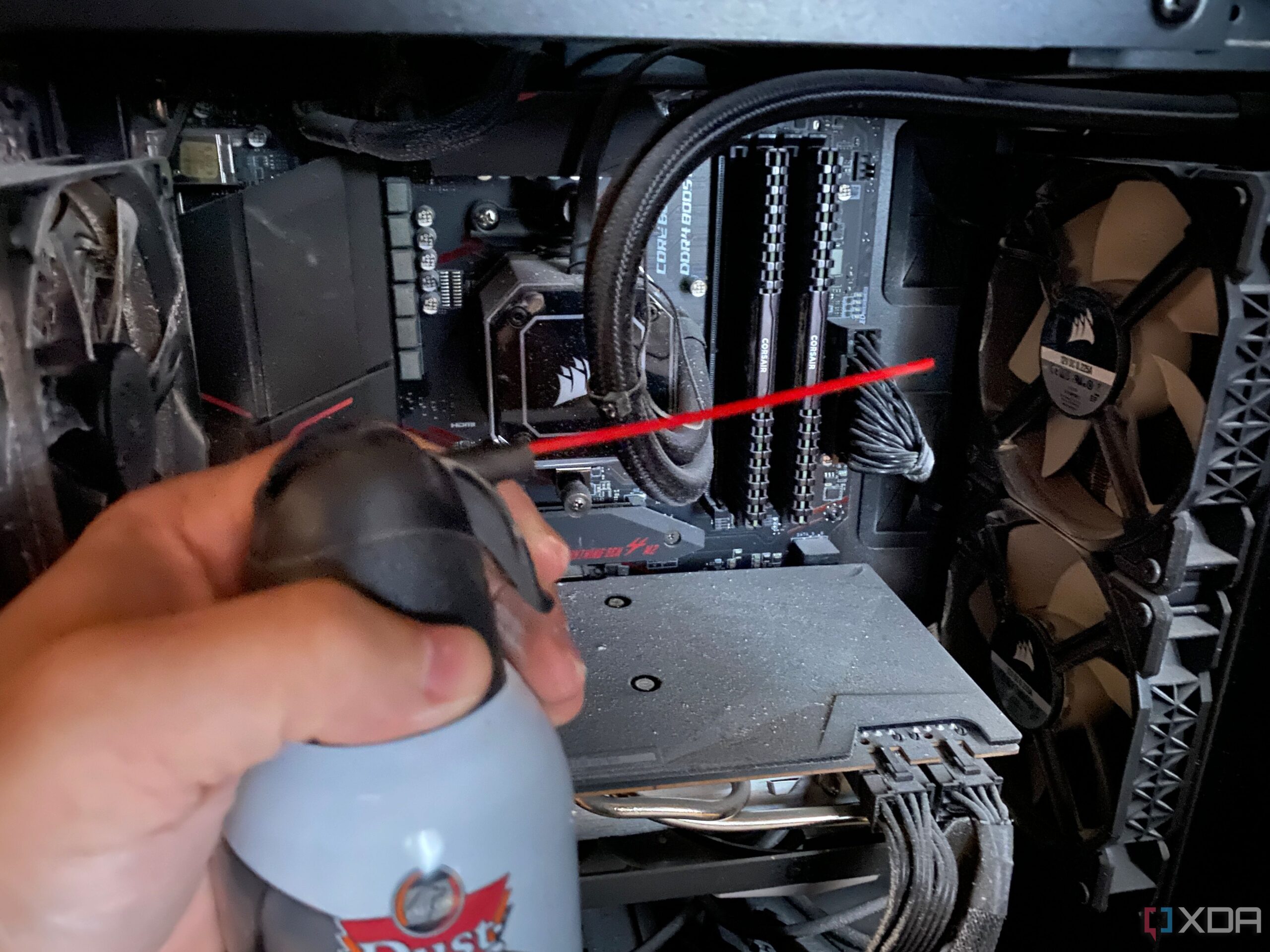
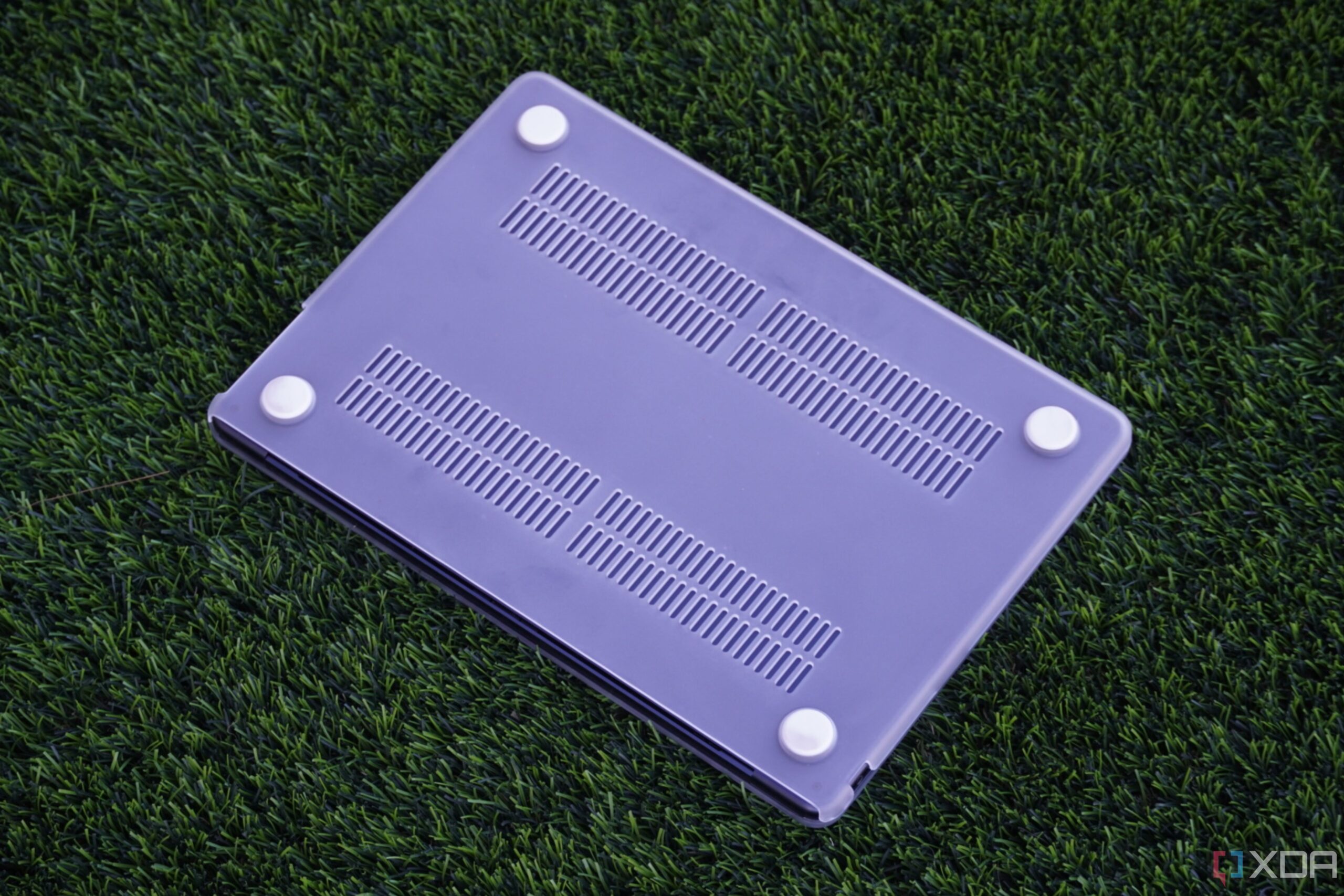
If your desktop or laptop is caked with dust, it won’t take long for your SSD to start overheating. This is a greater risk on laptops due to the restricted space for airflow, so start cleaning your laptop regularly (if you don’t already). You might notice sluggish data transfer, boot time, or game loading times, which can be signs of SSD overheating. If this is due to dust buildup on your PC, then a deep clean is an easy fix.
For cleaning your desktop tower, you can use a can of compressed air to blow out the majority of the dust. Using isopropyl alcohol to remove the rest of the grime will leave you with a clean PC that can finally breathe. Although thermal throttling isn’t a big concern for Gen4 (or Gen3) SSDs, performance slowdown and a reduced lifespan are very real concerns.
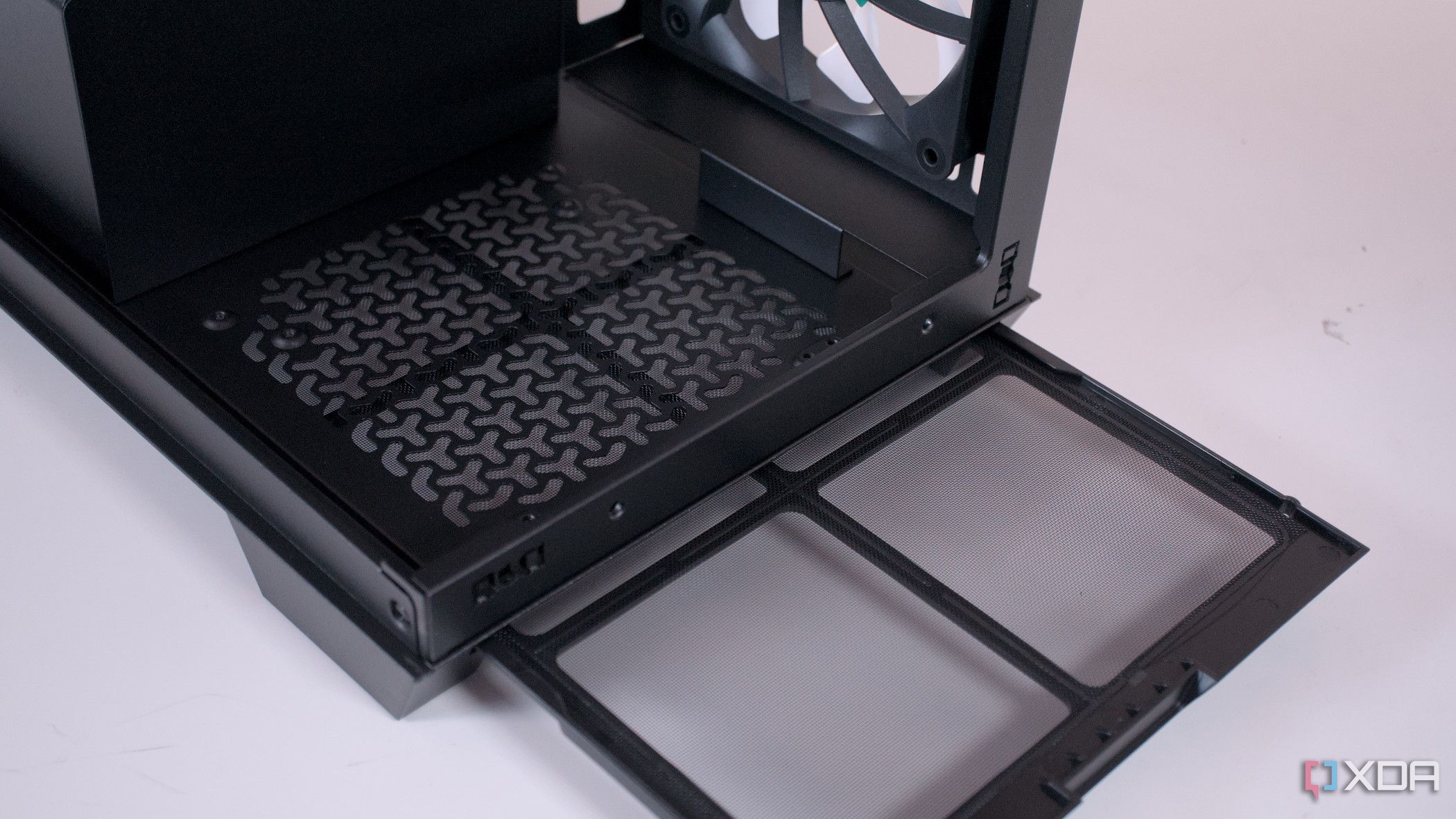
4 ways to prevent dust from slowing down your PC
Don’t let dust and other particles beat you and your mighty system.
1Ignoring power backup and surge protection
Don’t leave things to chance
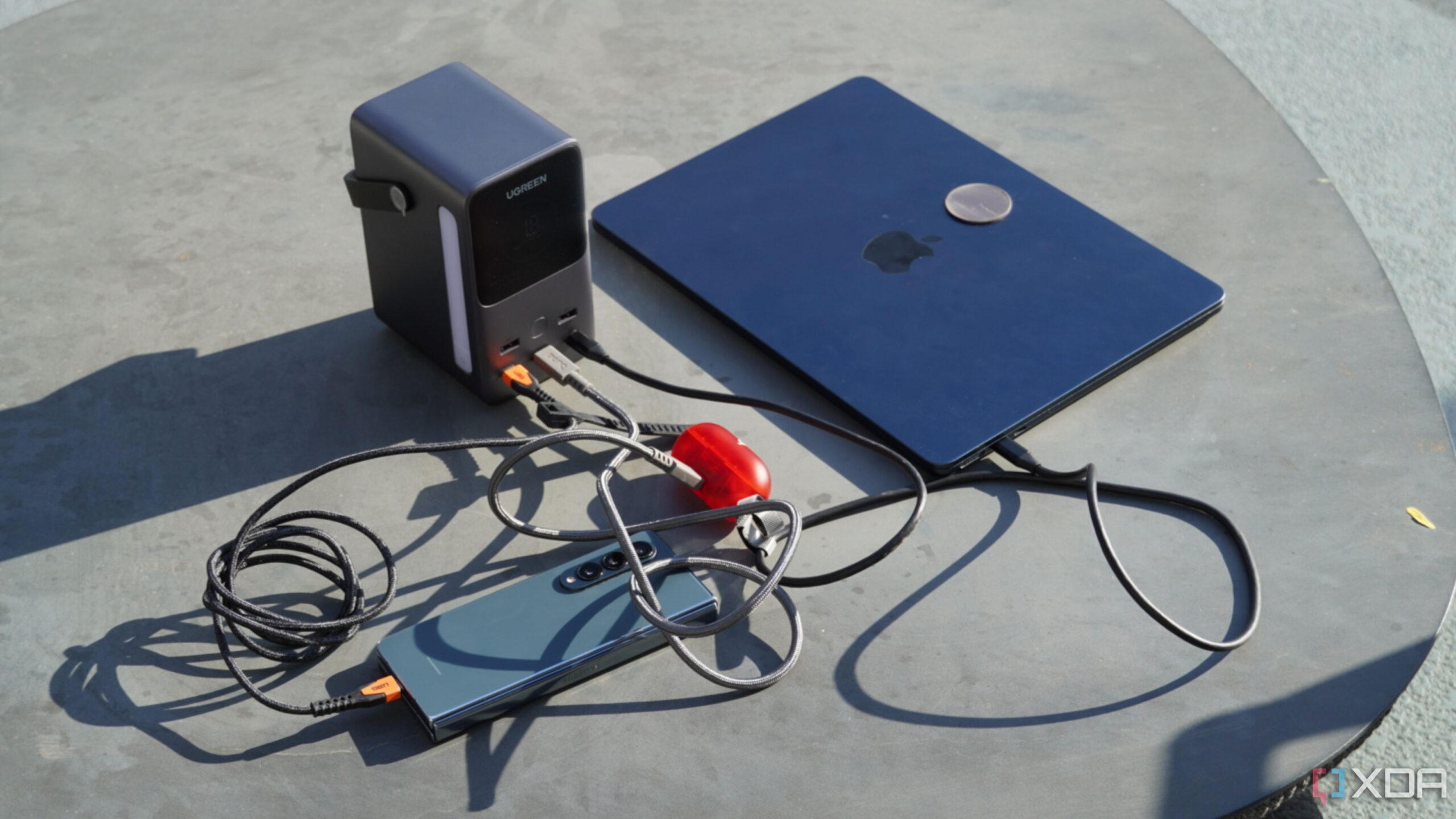
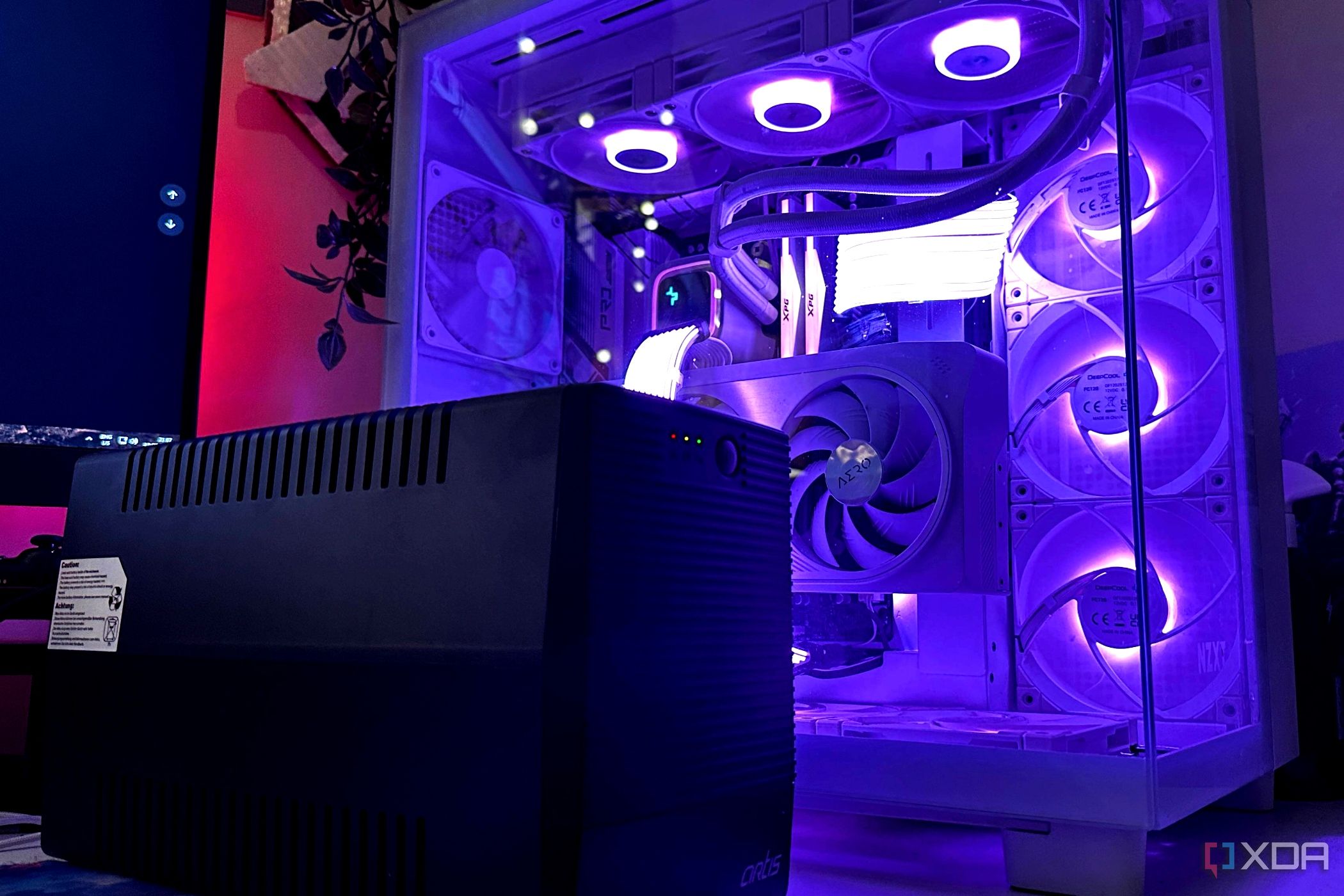
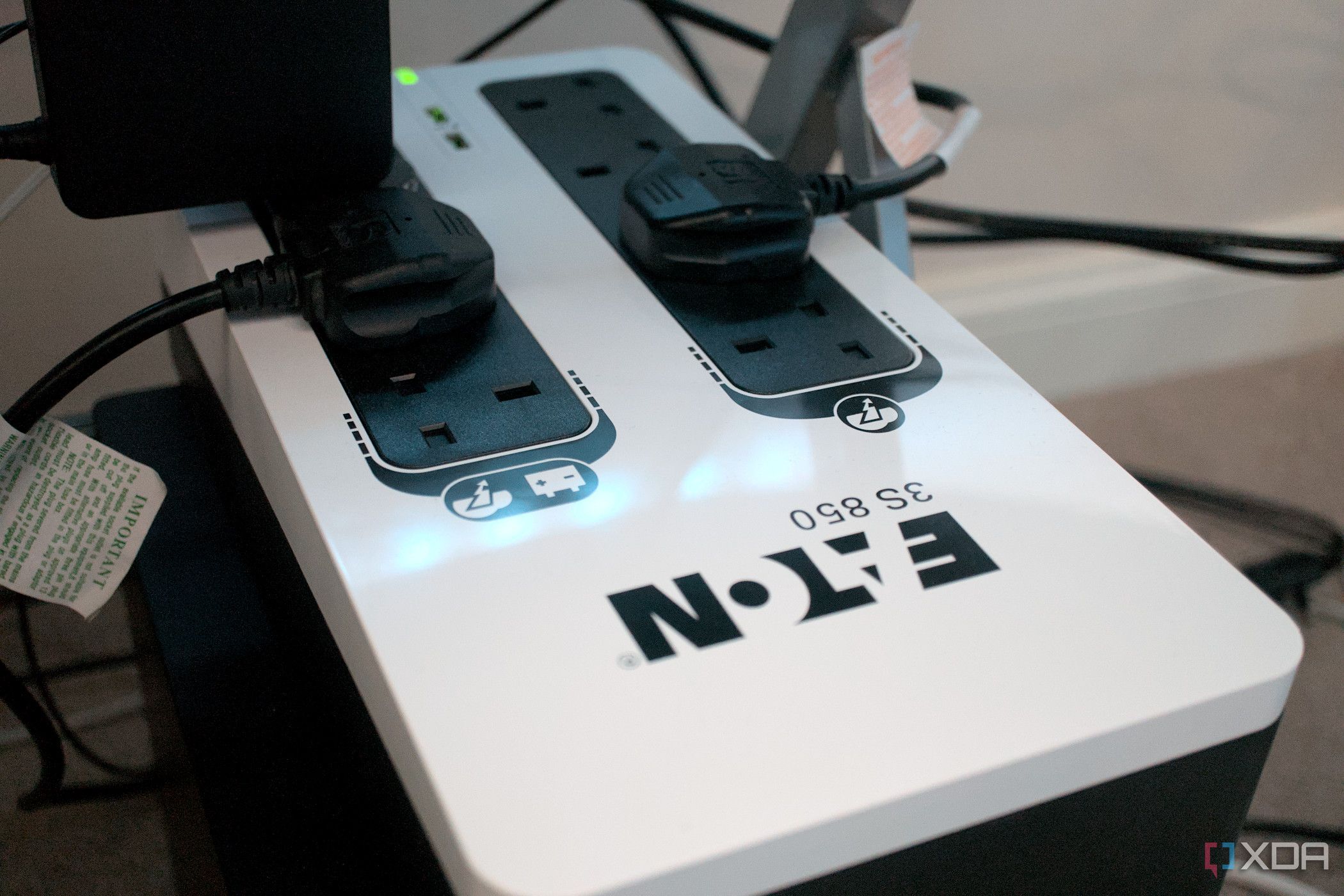
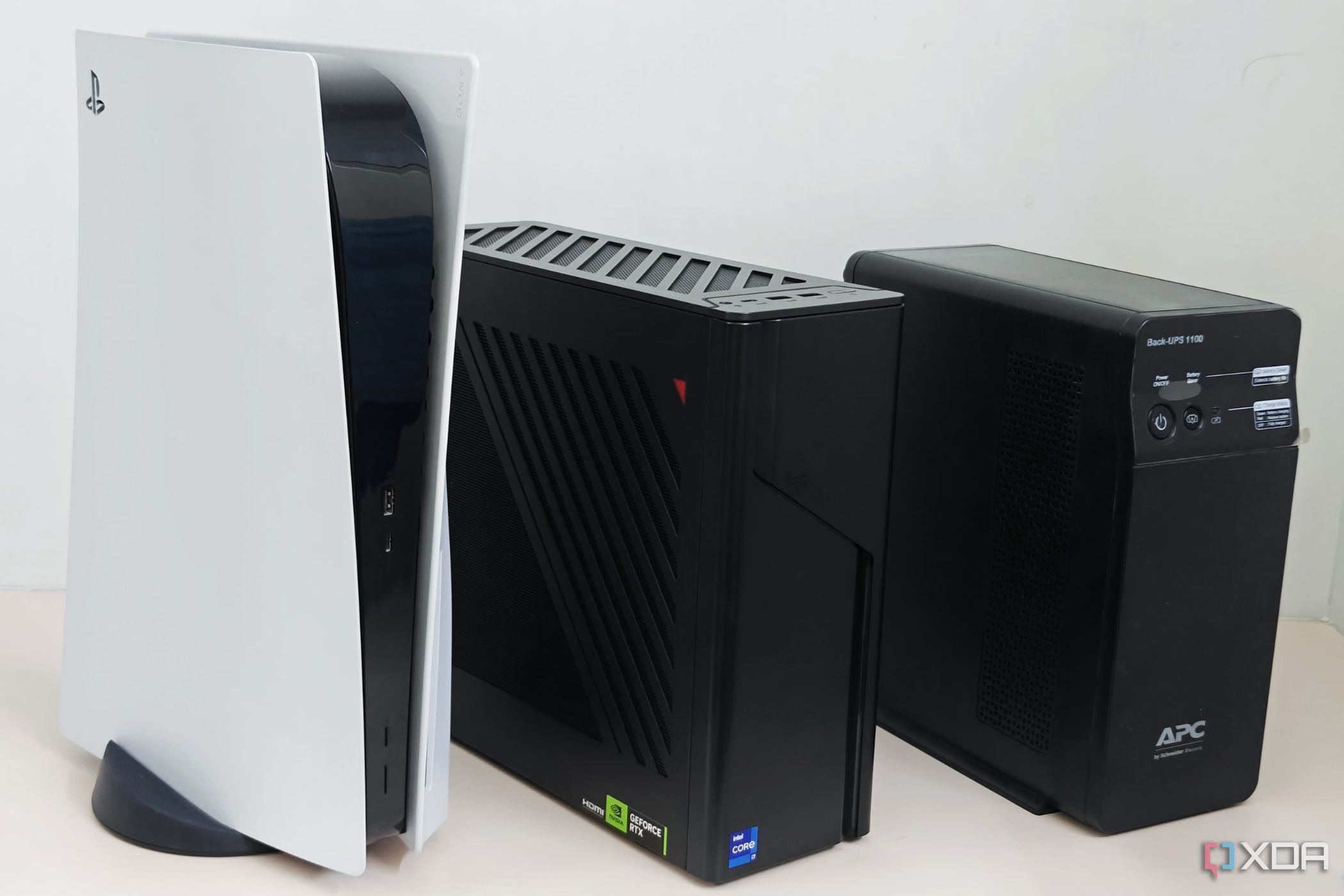
The power grid in your area might be reliable, but power cuts and surges can affect anyone. A power outage from an aging power grid or an emergency can arise at any time. When this happens, a computer running without a UPS can suffer from data loss and damage to its components. A power surge can also overload your power supply and affect your sensitive components. A UPS with built-in surge protection can keep your SSD and PC safe in an unlikely power-related incident.
If you haven’t created a backup of your data, a power surge can leave you frustrated, regretting your lapse. Investing in a UPS isn’t expensive, once you consider the benefits. Protecting thousands of dollars’ worth of PC hardware with a power backup solution is prudent, even if you might need that solution only a handful of times.
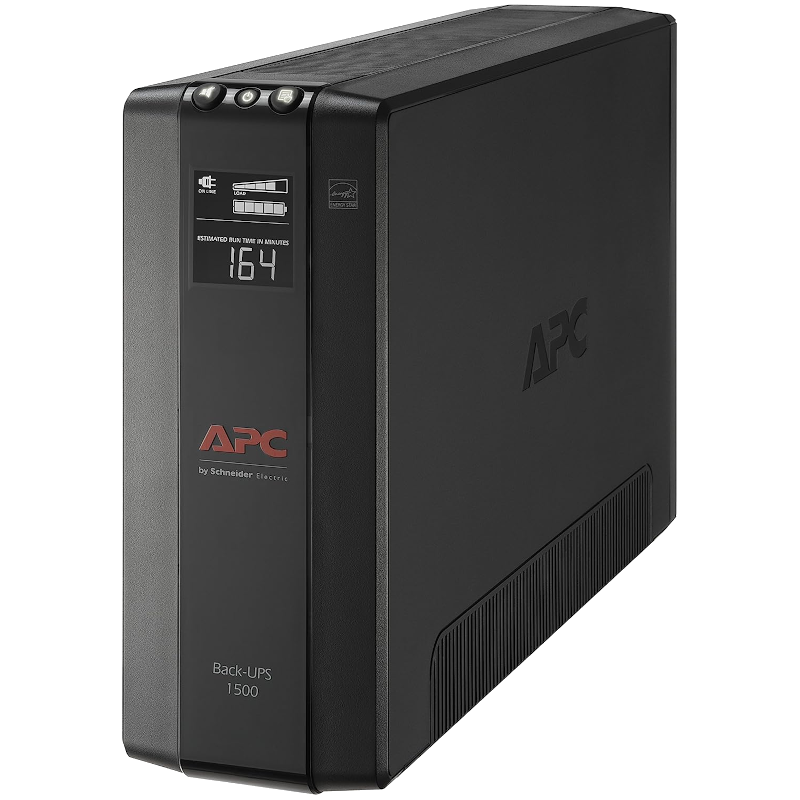
APC BX1500M
The APC BX1500M is a high-quality, premium UPS with a maximum load capacity of 1500 VA and 900 W. Whether you have a desktop PC, monitor, router, printer, or all the above, this UPS will be able to handle it all.
Give your SSD the best chance
Modern SSDs rarely fail within the warranty period, and you’re more likely to replace one before that ever happens. Still, extending your SSD’s lifespan is possible if you keep a few rules in mind. Cleaning your PC regularly, ensuring optimum airflow, installing a heatsink on the SSD, investing in power backup and surge protection, and updating the firmware are some easy and effective steps you can take to safeguard your SSD from overheating and data loss.