
- Windows 11 introduces a black screen of death for easier error handling & less stress during troubleshooting.
- The new update includes Quick Machine Recovery for automatic detection and fixes of widespread issues.
- Other updates include Recall in the EEA, Reading Coach enhancements, and Copilot actions in Word & Teams.
For a little while, we’ve seen Microsoft rolling out a new blue screen of death to Windows 11. Well, we say “blue screen,” but in truth, the new adjustments makes the display go black instead. It’s part of Microsoft’s mission to make it easier for people and businesses to get their systems back up and running.
Now, this Patch Tuesday, Microsoft is adding this handy new feature for everyone to try. And while it’s on a gradual rollout, it should arrive on everyone’s PCs soon.
Windows 11 gets the “black screen of death” as part of the Windows Resiliency Program
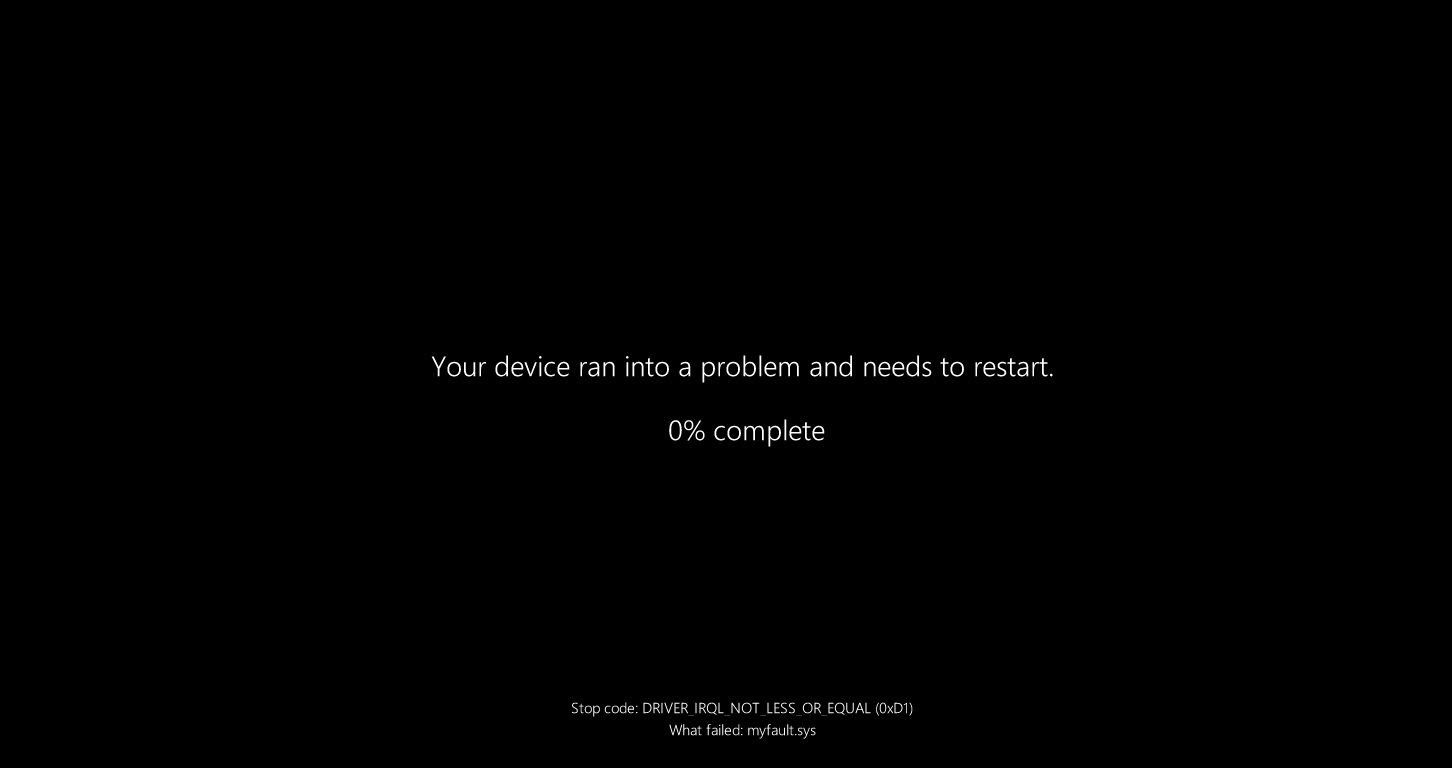
Image Credit: Windows Latest
In a post on Microsoft Support, the company details all the stuff coming to the release channel. Of course, in typical Microsoft fashion, the more exciting patch notes are hidden in last week’s testing patch that has now arrived on the release branch as part of Patch Tuesday.
The update covers more Copilot features and fixes, but my personal highlight is this bit:
New! Quick machine recovery is now available. When enabled, it automatically detects and fixes widespread issues on Windows 11 devices using the Windows Recovery Environment (WinRE). This reduces downtime and avoids the need for manual fixes. If a device experiences a widespread boot issue, it enters WinRE, connects to the internet, and Microsoft can deliver a targeted fix through Windows Update. IT admins can enable or customize this experience for their organization through the Intune Settings Catalog UI using the RemoteRemediationCSP. There is also a dedicated quick machine recovery settings page available under System > Recovery > Quick machine recovery. Today, it’s enabled by default for home users.
This change includes making the blue screen of death a black color and setting the font to be the same as Windows Updates. The changes are meant to make the screen less visually intrusive and stressful and make it easier for people to get their error fixed.
The update also brings Recall to computers within the EEA. The AI-powered feature caused a lot of controversy when it was first revealed, as people were concerned that it’s screenshot-taking nature would harm privacy and even act as a security risk. However, it seems that Microsoft has made it secure enough for a release within European countries.
Here are all the things currently on gradual rollout:
- [Recall]
- New! Recall is now available in the European Economic Area (EEA). For more info, see Retrace your steps with Recall. In the EEA, Recall supports exporting snapshots to share with trusted third-party apps and websites. When saving snapshots is turned on for the first time, a unique Recall export code appears. This code is required to decrypt exported snapshots and is shown only once during initial setup. Microsoft doesn’t store or recover this code. To export, go to Settings > Privacy & Security > Recall & Snapshots > Advanced Settings and authenticate with Windows Hello. Choose to export past snapshots (from the last 7 days, 30 days, or all) or start a continuous export. Third-party apps can access exported snapshots only when both the export code and folder path are provided. If you lose or compromise the export code, reset Recall to generate a new one.
- New! For all Recall users worldwide, you can now reset Recall and delete all its data. Go to Settings > Privacy & Security > Recall & Snapshots to find a new advanced settings page. There, you’ll see a reset button that deletes all your snapshots and restores Recall to its default settings.
- [Click to Do]
- New! 1 Practice in Reading Coach is a new Click to Do text action that helps you improve reading fluency and pronunciation. Select text on your screen, choose Practice in Reading Coach, and read the text aloud. Reading Coach gives you feedback and shows where to improve. To use this feature, install the free Microsoft Reading Coach app from the Microsoft Store.
- New! 1 Read with Immersive Reader is a new text action in Click to Do that displays text in a focused, distraction-free environment. It helps improve reading and writing for all skill levels and abilities. You can adjust text size, spacing, font, and background theme, have text read aloud, break words into syllables, and highlight parts of speech. The picture dictionary shows images for unfamiliar words. To use this feature, install the free Microsoft Reading Coach application from the Microsoft Store.
- New! 1With the Draft with Copilot in Word text action, you can quickly turn any recognized text into a full draft. Whether it’s a sentence in an email or a snippet on your screen, press Win + Click on the recognized text, then select Draft with Copilot in Word. No more blank pages. No more writer’s block. Just momentum. To use “Draft with Copilot in Word” a Microsoft 365 Copilot subscription is required.
- New! 1Click to Do on Copilot+ PCs now supports actions through Microsoft Teams. When you select an email address recognized by Click to Do on your screen, you can choose to send a Teams message or schedule a Teams meeting. These options make it easy to ask a question or set up time to talk without interrupting your workflow.
- [Settings]
- New! 1The new agent in Settings is part of the Copilot+ PC experience and is designed to address one of the most common frustrations: finding and changing settings on your PC. You can describe what you need help with, such as “how to control my PC by voice” or “my mouse pointer is too small,” and the agent will suggest steps to resolve the issue. The agent uses AI on your PC to understand your request and, with your permission, can automate and complete tasks for you. This experience is rolling out to Snapdragon-powered Copilot+ PCs, with support for AMD and Intel™-powered PCs coming soon. It currently works only if your primary display language is set to English.
- New! On non-Copilot+ PCs, the Settings app now shows the Search box at the top center to make searching easier and more consistent.
- Fixed: If your PC is set to ‘Do nothing’ when you close the lid (under Settings > System > Power and Battery) and the Settings window is left open when you close the lid, reopening the lid might cause the Settings window to stop responding. It might become unresponsive to input or resizing and instead just display your accent color.
- Fixed: Settings might stop responding when you try to save Wi-Fi network credentials.
- [Windows Resiliency Initiative] The following changes are part of the Windows Resiliency Initiative announced at Ignite 2024:
- New! Quick machine recovery is now available. When enabled, it automatically detects and fixes widespread issues on Windows 11 devices using the Windows Recovery Environment (WinRE). This reduces downtime and avoids the need for manual fixes. If a device experiences a widespread boot issue, it enters WinRE, connects to the internet, and Microsoft can deliver a targeted fix through Windows Update. IT admins can enable or customize this experience for their organization through the Intune Settings Catalog UI using the RemoteRemediationCSP. There is also a dedicated quick machine recovery settings page available under System > Recovery > Quick machine recovery. Today, it’s enabled by default for home users.
- New! A more streamlined interface appears during an unexpected restart. This updated design aligns with Windows 11’s visual style and helps you return to work faster. The screen displays a more readable layout while keeping the technical details visible. This screen appears with a black background.
- [Start menu] New! We are adding a Boolean option to the Configure Start Pins policy to allow admins to apply Start menu pins once. This means that a user will receive admin pins on day 0 but can then make any changes to their Start pinned layout and have those changes safeguarded. These changes can be optionally applied through the existing configuration Service Provider (CSP).
- [Snap] New! Improvements make it easier to learn and use Snap in Windows 11. Inline messages now appear when you accidentally open the Snap Bar by dragging an app to the upper center of your desktop or open the Snap menu by hovering over the Minimize or Maximize button. These messages provide helpful tips on Snap app windows and show keyboard shortcuts.
- [Windows Search] New! Windows Search settings are now easier to find. Instead of two separate pages for settings (“Search permissions” and “Searching Windows”), you can find everything in one place under Settings > Privacy & security > Search. This new page has a modern look and a better layout, so you can quickly view and manage all your Windows Search settings.
- [Input] New! The Gamepad layout of the Windows touch keyboard now includes enhanced controller navigation and improved focus handling for child keys, menus, word suggestions, language switching, and settings. A new Gamepad keyboard, designed for gaming, also supports PIN sign-in on the Windows lock screen. It offers controller shortcuts for quick PIN entry and full navigation for those who prefer not to use shortcuts.
- [File Explorer]
- Fixed: If you open More options in File Explorer to view the full list of folders for the current path, the dropdown menu might not display completely, making the bottom part inaccessible.
- Fixed: File operation progress dialogs might stop appearing when displayed from apps.
- Fixed: Syncing more SharePoint sites to File Explorer might slow performance when navigating folders or opening the context menu. This can also affect how quickly files launch.
- [Desktop icons] Fixed: If you have an app pinned to your desktop and it updates, the app icon might not display correctly and instead show a white page.
- [Notifications] Fixed: When you select a Windows notification, it might not bring the related app to the foreground as expected—for example, this can happen with Outlook notifications.
read more
And here are the features on normal rollout:
- [Authentication] Fixed: This update addresses an issue that affects the Local Security Authority Subsystem Service (LSASS). LSASS might stop responding during machine password changes with specific audit settings.
- [File Explorer] Fixed: File Explorer Home might unexpectedly only display a single folder (for example, Desktop), rather than the expected content with recent files and more.
- [File system] Fixed: This update addresses an issue in the Resilient File System (ReFS) where using backup applications on large files could occasionally result in system memory becoming fully exhausted.
- [Graphics] An issue where external graphics cards connected through Thunderbolt weren’t always recognized in some cases.
- [Input (know issue)]
- Fixed: An issue when using the Microsoft Changjie IME (input method editor) for Traditional Chinese might cause problems such as not being able to form or select words, unresponsive spacebar or blank key, incorrect word output, or a broken candidate window display. This can occur after installing KB5062553.
- Fixed: This update addresses an issue that affects Phonetic input methods, including the Hindi Phonetic Input keyboard and the Marathi Phonetic keyboard, which might not work correctly after installing KB5062553.
- [Stability issue] This update addresses an issue observed in rare cases after installing the May 2025 security update and subsequent updates causing devices to experience stability issues. Some devices became unresponsive and stopped responding in specific scenarios.
- [Windows Firewall] Fixed: This update addresses an issue found in Event Viewer as Event 2042 for Windows Firewall with Advanced Security. The event appears as “Config Read Failed” with the message “More data is available.” For more information about this issue, see “Error events are logged for Windows Firewall” in the Windows Health Dashboard.
Windows 10 receives some fixes
As you might expect, Windows 10 didn’t get nearly as many exciting updates. It includes some fixes for common issues, and you can read about them on Microsoft Support. Here are the notes:
This security update includes fixes and improvements that are a part of the following updates:
- July 8, 2025—KB5062554 (OS Builds 19044.6093 and 19045.6093)
- July 22, 2025—KB5062649 (OS Build 19045.6157) Preview
The following is a summary of the key issues that this update addresses when you install this update. If there are new features, it lists them as well. The bold text within the brackets indicates the item or area of the change we are documenting.
- [Internal Windows OS] This update contains miscellaneous security improvements to internal Windows OS functionality. No specific issues are documented for this release.
read more
If you want to see each patch that was released today across the currently supported Windows 10 and 11 versions, here they all are
| Windows version | Build number | Changelog | Supported editions | Manual Download |
|---|---|---|---|---|
| Windows 11 24H2 | 26100.4946 | KB5063878 | All editions | Microsoft Update Catalog |
| Windows 11 23H2 | 22631.5768 | KB5063878 | All editions | Microsoft Update Catalog |
| Windows 11 22H2 | 22621.5768 | KB5063878 | All editions | Microsoft Update Catalog |
| Windows 10 22H2 | 19045.6216 | KB5063709 | All editions | Microsoft Update Catalog |
| Windows 10 21H2 | 19044.6216 | KB5063709 | Windows 10 Enterprise LTSC 2021, Windows 10 IoT Enterprise LTSC 2021 | Microsoft Update Catalog |