
Here’s how to review and remove third-party apps connected to your Google account, including Sign in with Google and data access
If you’ve been using the same Google account for years, there’s a good chance you’ve connected it to more apps and services than you remember. It may not be the case for you, but a lot of people simply find it more convenient to sign in with Google instead of going through the whole process of creating a new account somewhere.
You’re probably regularly using some services where you’re signed in with Google, but there’s also a chance you created a bunch of connections and simply forgot about them. That doesn’t necessarily mean anything is wrong, but it’s still worth checking every once in a while. You may find old apps you no longer use, or services you forgot about, that simply don’t need access to your account anymore.
Fortunately, Google gives you one place to review all of them.
Here’s what you need to do:
- Open your Google Account page.
- Go to Linked apps.
- Find the app or service you want to review.
- Select it to see what kind of connection it has and what it can access.
- If it uses Sign in with Google, click See Details, and choose Stop using Sign in with Google.
- If it has access to your Google Account data, choose Remove access.
- If it’s a linked account, choose Delete link.
- If you want to delete all the connections, you ca choose Delete all.
- Confirm your choice.
The exact option you see depends on how that app is connected to your Google account.
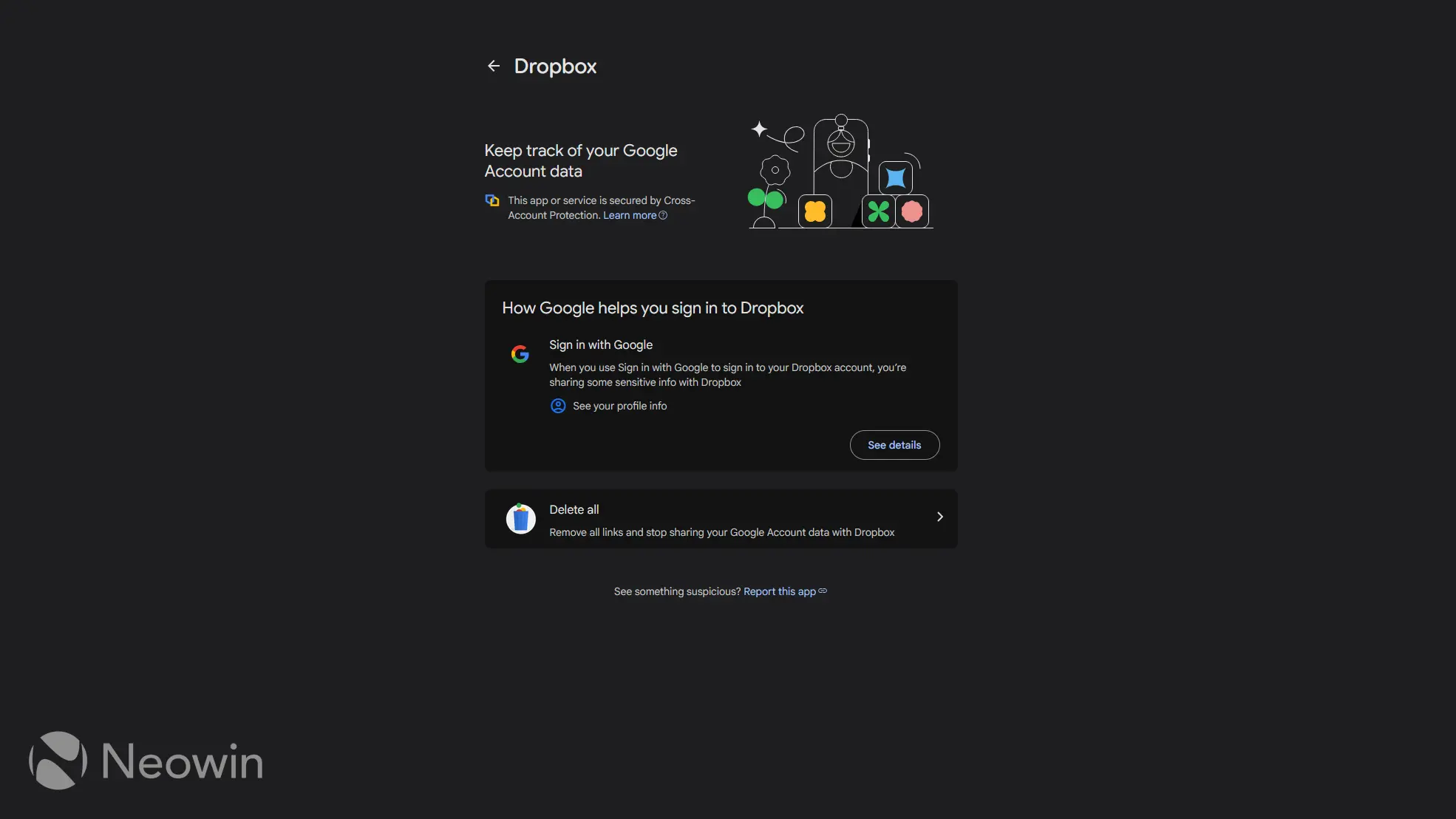
Now, keep in mind that if you remove Sign in with Google, your account with that third-party service is not deleted. You’re only removing Google as the login method. So, if you still want to use that service without Google, make sure you set up another way to sign in first, such as a password or another supported login method. Otherwise, you may need to reconnect your Google account just to get back in.
Also, removing access to your Google Account data means the app can no longer read or use the Google data you previously gave it permission to access. For example, if an app had access to your Drive files or Calendar, that connection will stop working once you remove it.
However, this only cuts off future access. It does not automatically erase any information the app may have already downloaded or stored on its own servers. If you want that data deleted too, you may need to do it through the app itself or contact the developer. I’ll let you be the judge of how effective that may be.
This is a small bit of account maintenance, but if you’ve been signing into websites and apps with Google for years, you may be surprised by how many old connections are still sitting there. If nothing else, reviewing all these connections will at least give you a trip down memory lane, as you may remember what you were doing when you made that forgotten account years ago.
Of course, we’re only talking about restricting access to your Google Account data to third-party apps and services. But if you want Google itself to gather less of your data, that’s a whole another story. For starters, you can turn of Gemini in Chrome, or use a version of Chrome that doesn’t require a Google Account.